Data Management on Windows
Introduction
This guide provides step-by-step instructions for installing the Data Management application on Windows.
Prerequisites
- PubServer: Version 4.7.0.x
- Knowledge requirements: Basic understanding of configuring PubServer (Autodeploy, deployment packages, Eclipse ISON plugin).
Installation Steps
Required Dependencies Matrix
DM includes three main modules: Facet, Attribute Set, and Content. Each module works on its own and appears in the application only when the entity model matches the expected structure and the needed plugins and permissions are in place.
The Content module shares permissions with the default Content in other parts of the application, so installing the Data Management service is not strictly necessary to use it but is recommended to track the health status of the application inside of the Admin application.
To enable each module certain plugins and applications need to be setup. Find the required dependencies for your use-cases below. The rows indicate the plugin / application that is needed to make the module indicated in the column work.
| Component | Facet Module | Attribute Set Module | Content Module |
|---|---|---|---|
| ElasticSearch (Application) | ✔ | ✘ | ✘ |
| Facet Core package (Plugin) | ✔ | ✘ | ✘ |
| Data Management service (Plugin) | ✔ | ✔ | ✘ |
Follow only the relevant steps depending on the features you want to use.
1. Download the Package from Priint WebFTP
Depending on your PubServer version, download the corresponding Data Management package.
For example, for version 4.7.0, the folder is:
https://webftp.priint.com/#/priint_suite_4.7.0/publishing%20server%20add-on%20zips/latest/
Unzip the package — it contains all files required for installation.
2. Set Up ElasticSearch (Optional)
If you plan to use the Facet module in Data Management, an ElasticSearch instance must be set up.
We don't provide any ElasticSearch instance as part of our installation. Please refer to the vendor documentation for more information on licensing and installation.
The data structure must follow the predefined schema.
Please refer to this document for details on preparing the data.
3. Install the Facet Core Package (Optional)
From the unzipped package, locate the Facet Core package (e.g., Facet-Core-package.4.7.x.zip).
The Facet Core package is a PubServer deployment package that includes:
- The entity model named
FacetModel - REST connector configurations for the entity model
- The Facet Core plugin (Payara plugin)
To install it, follow the general guidelines for deployment packages described here.
After successful deployment, update the Facet Core configuration as described here.
4. Install the Data Management Application (Spring Boot)
From the unzipped package, locate the JAR file (e.g., data-management-4.7.x.jar).
Steps
-
Install the required Java SDK
For example, version 21 is required for Data Management 4.7.0. -
Check the application folder
From PubServer version 4.7.0.805, a new installation includes a subfolder inside the PubServer directory for the Data Management application: data-management.
In this folder, you can find several files used to set up and run the application:
application.properties: sample Spring Boot configuration file for the application.data-management-4.7.xml,data-management-4.7.exe: files used to start the application as a service.data-management-start.bat: script to start the application service.data-management-stop.bat: script to stop the application service.logback.xml: recommended Logback configuration for the application.
If your PubServer was installed before version 4.7.0.805 and the
data-managementfolder does not exist, please download the latest base package from WebFTP, extract it, and copy thedata-managementsubfolder into your PubServer directory.
- Copy the JAR file to the application folder (rename if desired).
Example:
C:\PubServer\data-management\data-management-4.7.jar
- Add/Update the Spring Boot configuration file (
application.propertiesorapplication.yml) to the same directory. A sample file (application_sample.properties) is included in the unzipped package.
-
Update the following custom configurations:
Property Description Example pubserver.baseUrlBase URL of the PubServer. The public domain is required here. https://pubserver.com/data-management-service/pubserver.admin.service.baseUrlBase URL of the AdminAPI API. It should be {YOUR_PUBSERVER_DOMAIN}/AdminAPI/api/. In case the Data Management and PubServer are hosted in the same server, the internal IP address or domain is allowed.https://pubserver.com/AdminAPI/api/pubserver.data-management.service.baseUrlBase URL of the Data Management Service API (if installed in PubServer for Facet/Attribute Set features). In case the Data Management and PubServer are hosted in the same server, the internal IP address or domain is allowed. https://pubserver.com/data-management-service/api/pubserver.data-management.appIdThe app ID configured in the PubServer AuthService for authentication. data-managementapp.pathThe application path (must be /dm)./dm -
Review and update the following Spring Boot configurations based on your requirements:
Property Description Example spring.servlet.multipart.max-file-sizeMaximum allowed size for a single uploaded file when handling multipart/form-data requests (used for Media Asset uploads). 20MBspring.servlet.multipart.max-request-sizeMaximum allowed size of the entire multipart HTTP request, including all files and form data. 500MBserver.portTCP port on which the Spring Boot application listens for incoming HTTP requests. 8686management.endpoints.web.exposure.includeSpecifies which Spring Boot Actuator endpoints are exposed over HTTP. Should not be changed, as this is required to display application information in PubServer Admin. health,infomanagement.endpoints.web.base-pathBase URL path under which all Spring Boot Actuator endpoints are exposed. Should not be changed, as this is required to display application information in PubServer Admin. /dm/management.endpoints.web.path-mapping.healthCustom URL path for the Actuator health endpoint. Should not be changed, as this is required to display application health information in PubServer Admin. healthzmanagement.endpoints.web.path-mapping.infoCustom URL path for the Actuator info endpoint. Should not be changed, as this is required to display application information in PubServer Admin. infozserver.forward-headers-strategyDefines how Spring Boot processes forwarded headers (X-Forwarded-*, Forwarded) when running behind a reverse proxy or load balancer. Should not be changed, as this setting is required by the framework to correctly resolve the original request scheme, host, and port. framework
- Set up Windows Service to run the application
-
Adjust the start script
Edit the file
data-management-start.batand make sure it references the correct JAR file name available in the folder. For example:..\java\jdk\bin\java -jar data-management-4.7.jar --spring.config.additional-location=file:"application.properties"
Note: The JAR file name may change depending on the deployed version.
-
Adjust the stop script
Edit the file
data-management-stop.batand ensure it uses the correct server port as defined inapplication.properties. For example:for /f "tokens=5" %%a in ('netstat -ano ^| findstr :8686')
Note: Update the port number if the application is configured to run on a different port.
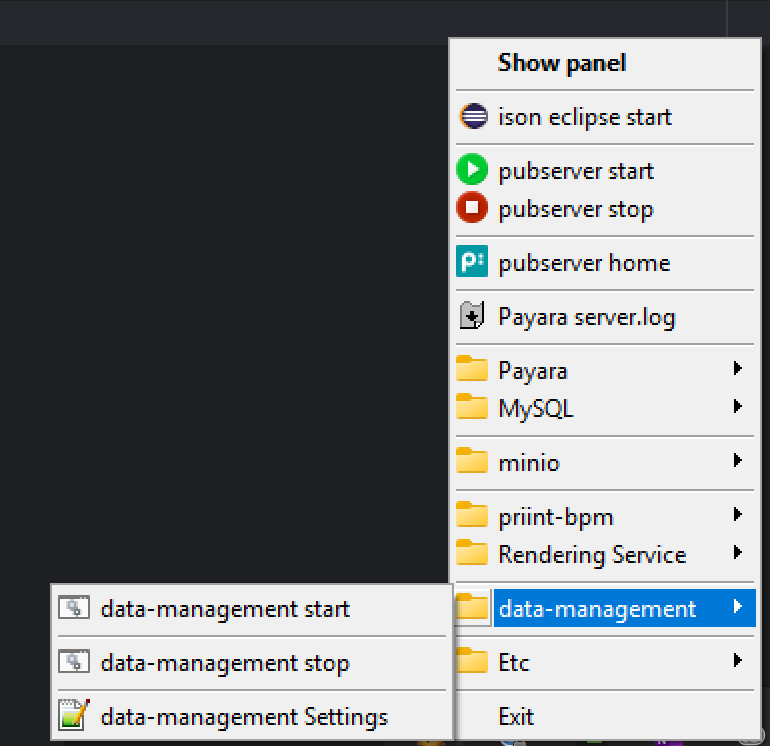
- After configuration, you can start and stop Data Management Service in the PubServer panel
- Configure the Reverse Proxy
Refer to this guideline to determine whether a reverse proxy needs to be configured for your environment.
Note: The referenced document is for Linux but the instructions for Windows are similar. You can check this document for finding the corresponding commands for Windows.
5. Install the Data Management Service (PubServer Plugin)
Starting from PubServer version 4.7.0.805, the Data Management Service is installed and updated automatically by the PubServer Installer. This means the plugin package will be updated whenever you update the PubServer core.
This plugin is required to enable the Facet and Attribute Set features in the Data Management application.
6. Update the PubServer AuthService Configuration
- Locate:
C:\PubServer\Glassfish\payara6\domains\pubserver\config\AuthService\config.xml
- Add a new application entry:
<authService>
    <apps>
        <app name="priint:data-management" id="data-management" visible="true">
            <uri>[DATA-MANAGEMENT_HOME_PAGE]/auth/callback?sessionId={sessionId}</uri>
            <sessionCookieName>dataManagementSessionId</sessionCookieName>
        </app>
    </apps>
</authService>
Note: Please replace
[DATA-MANAGEMENT_HOME_PAGE]with your server information, such as:https://priintsuite.com/dm
- If the file does not exist, follow this guide to create it.
Summary
- ElasticSearch is required only for Facet functionality and is not a part of our distribution.
- The Facet Core package must be deployed on PubServer, when Facet module is used.
- The Spring Boot Data Management app runs as a Windows Service (via NSSM).
- The Data Management Service WAR must be deployed on PubServer for Facet and Attribute Set support.
- AuthService must be updated to register the Data Management app for authentication.