View and Manage your Publications
View & manage publications in W2P
It allows you to view, track, and re-use your existing publications in different contexts. These are available across three main areas, depending on their status and archive parameter configuration.
Where to Find Publications
| Location | Description | Archive Parameter |
|---|---|---|
| Working Area | Draft publications not yet rendered or finalized. | isArchiveParameter = 0 |
| Existing Publications | Previously rendered publications available for re-editing or republishing. | isArchiveParameter = 1 |
| My Jobs | Rendered jobs with status and download access. | isArchiveParameter = 1 |
Each area is designed for a specific purpose and depends on your user access rights and publication type.
Working Area overview
To view and manage publications that are still in progress, navigate to Start from the W2P main menu. This section shows all draft publications, meaning those that have been created but have not yet been rendered.
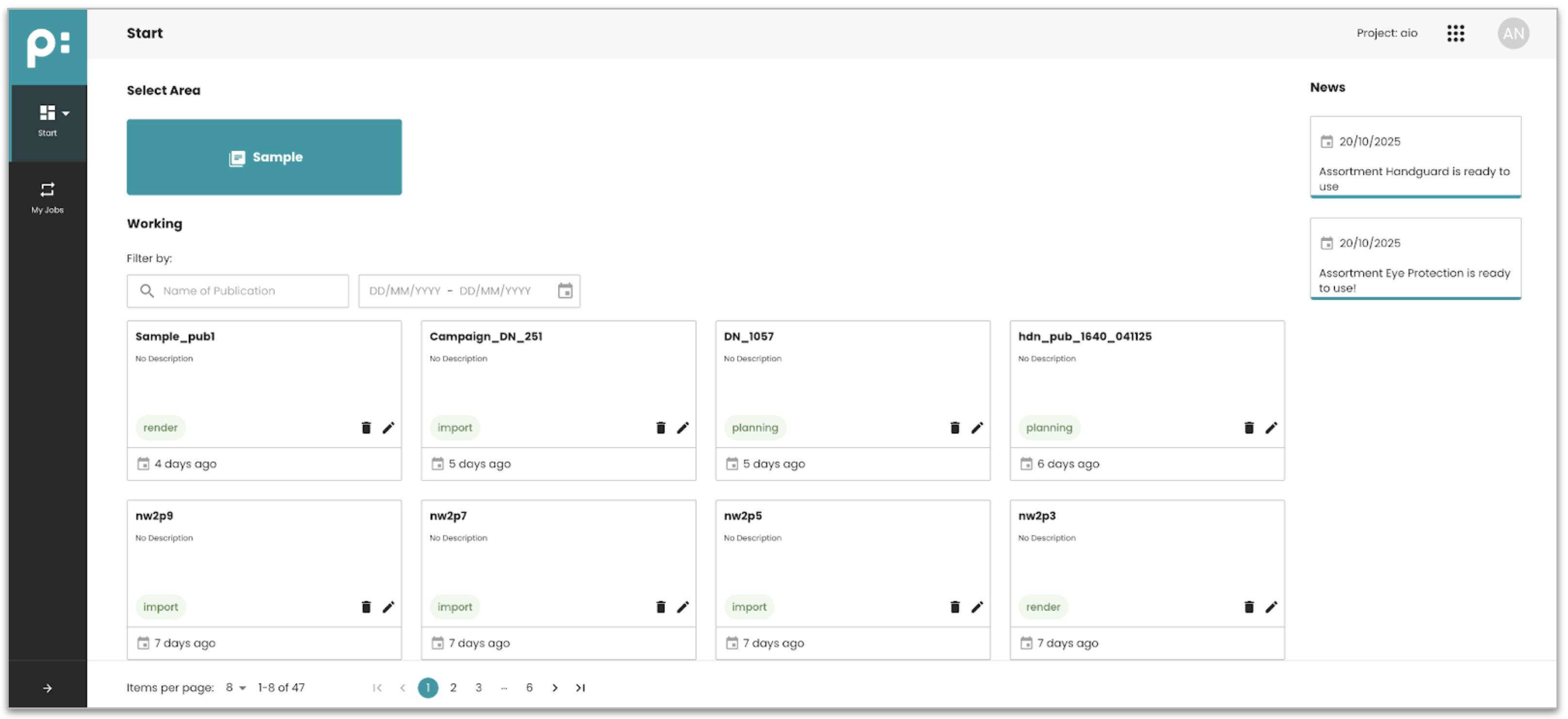
Here’s what you can do on this page:
-
Edit a publication: Click the Edit icon or click anywhere within the publication block to open it for editing.
-
Delete a publication: Click the Delete icon.
Note: This view only includes publications where
isArchiveParameter = 0, indicating they haven't been rendered or archived yet.
Search & Filter
By default, the draft publications list is sorted with the most recently created items shown at the top. The page displays 8 publications per view, but you can adjust this setting to show more items if needed.
To quickly locate a specific draft, use the built-in search and filter options:

- Search by keyword: Type a keyword into the search bar and press Enter.
- Filter by date range: Select a date range to narrow your results.
These options can be used individually or together. When both are applied, the system combines the filters and returns the most relevant results directly from the backend.
See also: Backend Publication Parameters Guide
Existing Publications details
To view and manage previously rendered publications, go to Start > Category from the W2P main menu.
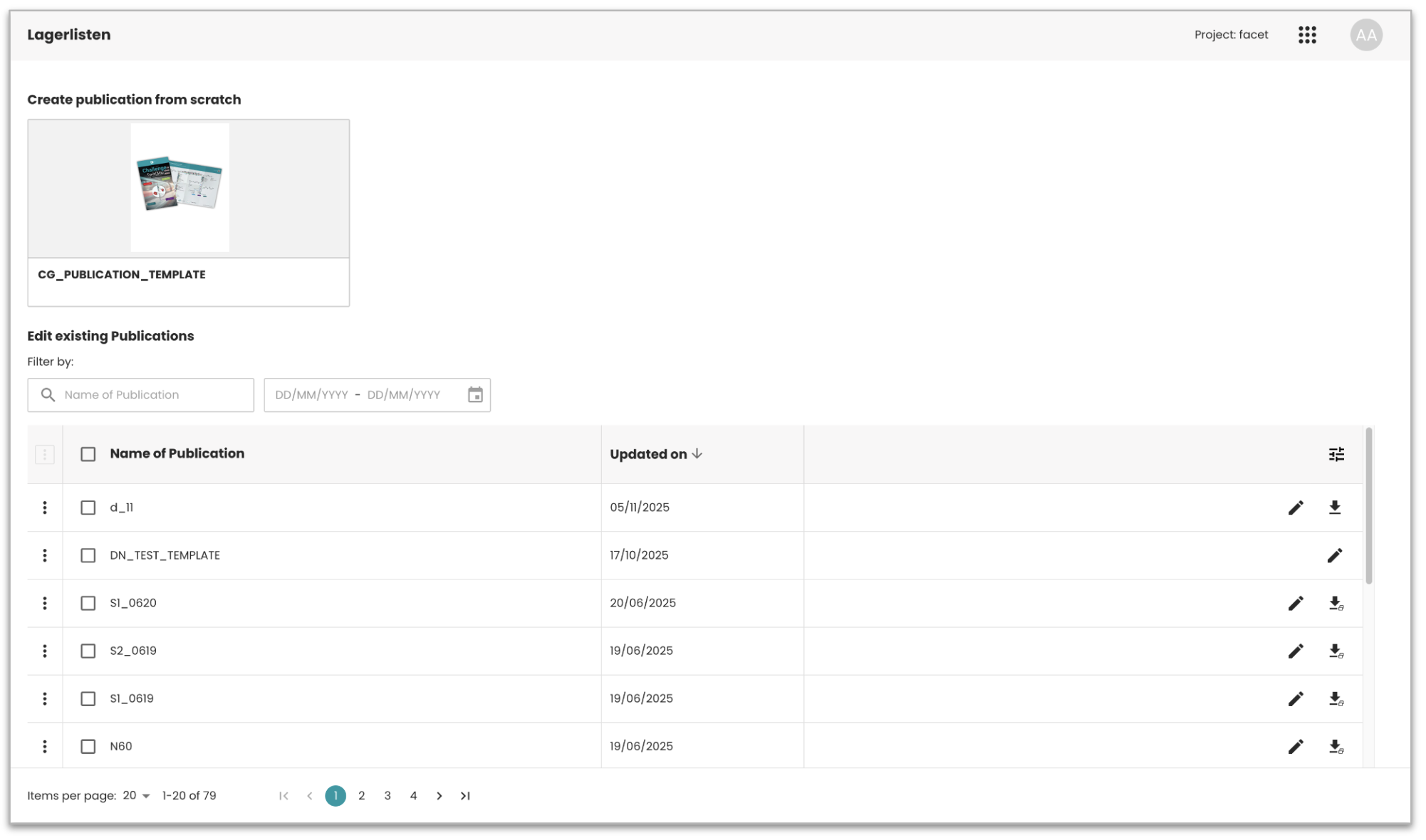 This section displays all archived publications—those that have already been rendered and stored.
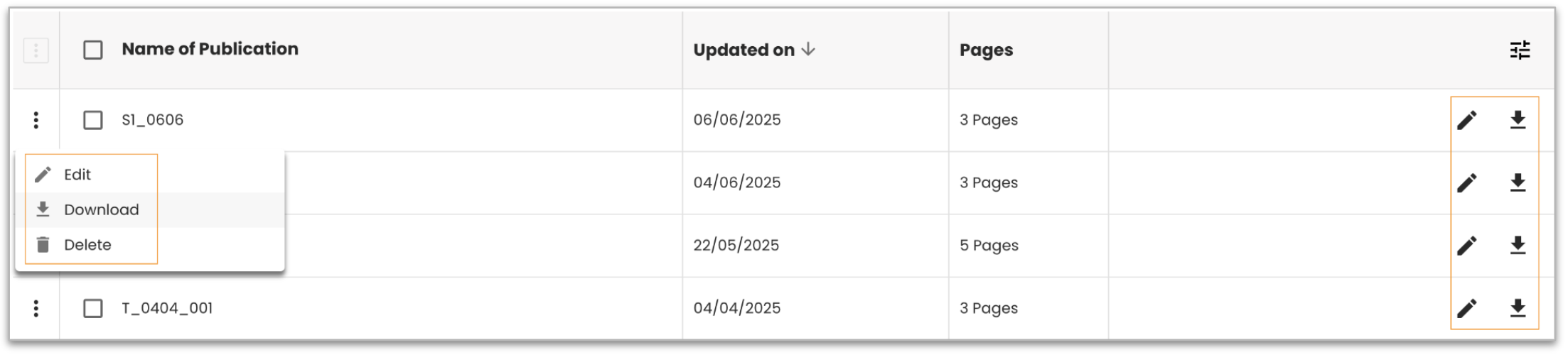
Here’s what you can do on this page:
-
Edit a publication: Click the Edit icon.
-
Download a publication: Click the Download icon.
-
Delete a publication: Click the Delete icon.
-
Bulk delete publications: Select two or more entries, click the three-dot icon in the header, and choose Delete.

Search & Filter
Publications are displayed by default with the most recently updated items shown at the top, based on the Updated On field.
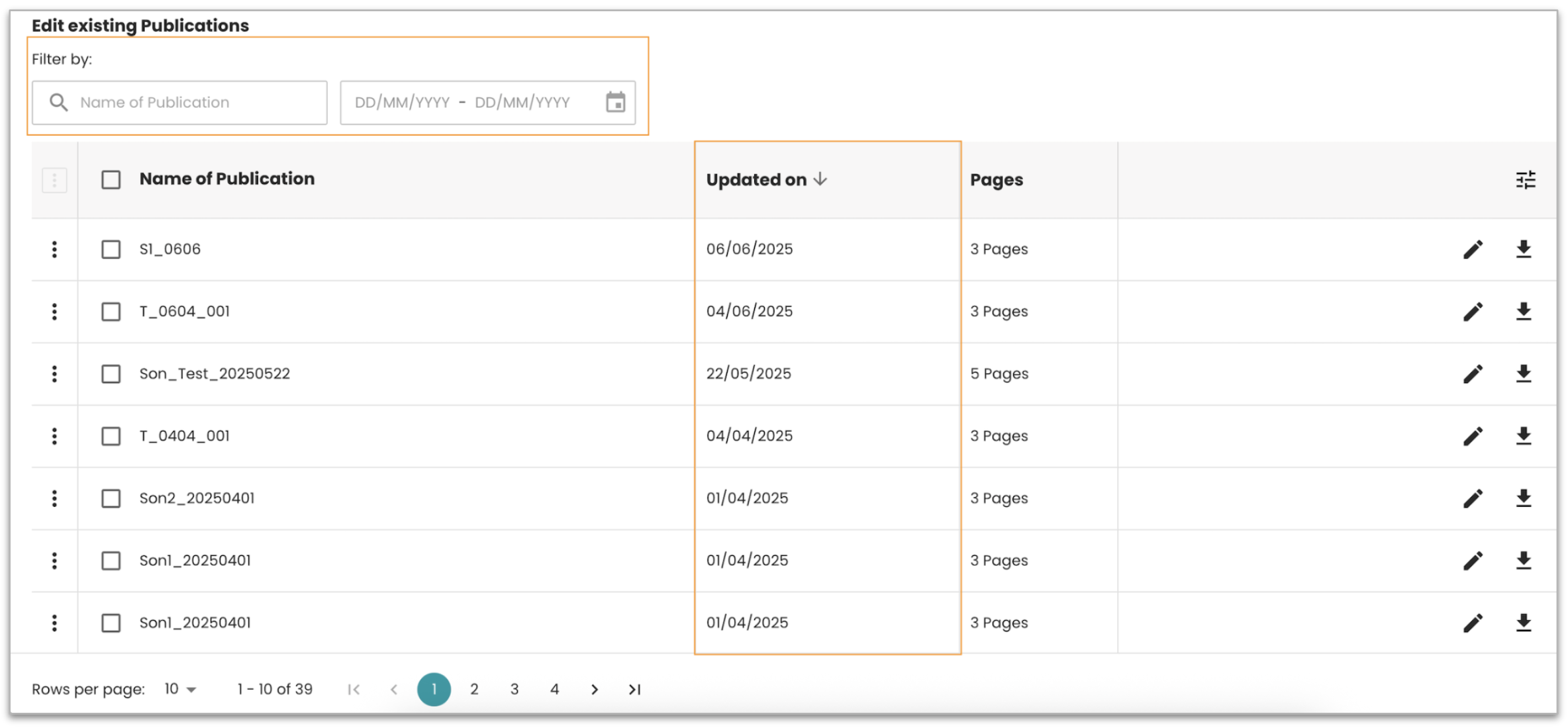
The list is paginated with 20 publications per page. You can adjust the number displayed as needed.
To quickly locate specific publications:
- Search by keyword: Type a keyword into the search bar and press Enter.
- Filter by date range: Select a date range to narrow your results.
These options can be used individually or together. When both are applied, the system combines the filters and returns the most relevant results directly from the backend.
Note: This view only displays publications where
isArchiveParameter = 1, meaning they have already been rendered or have gone through the rendering process at least once.
See also: How to configure this category page to be displayed
My Jobs Details
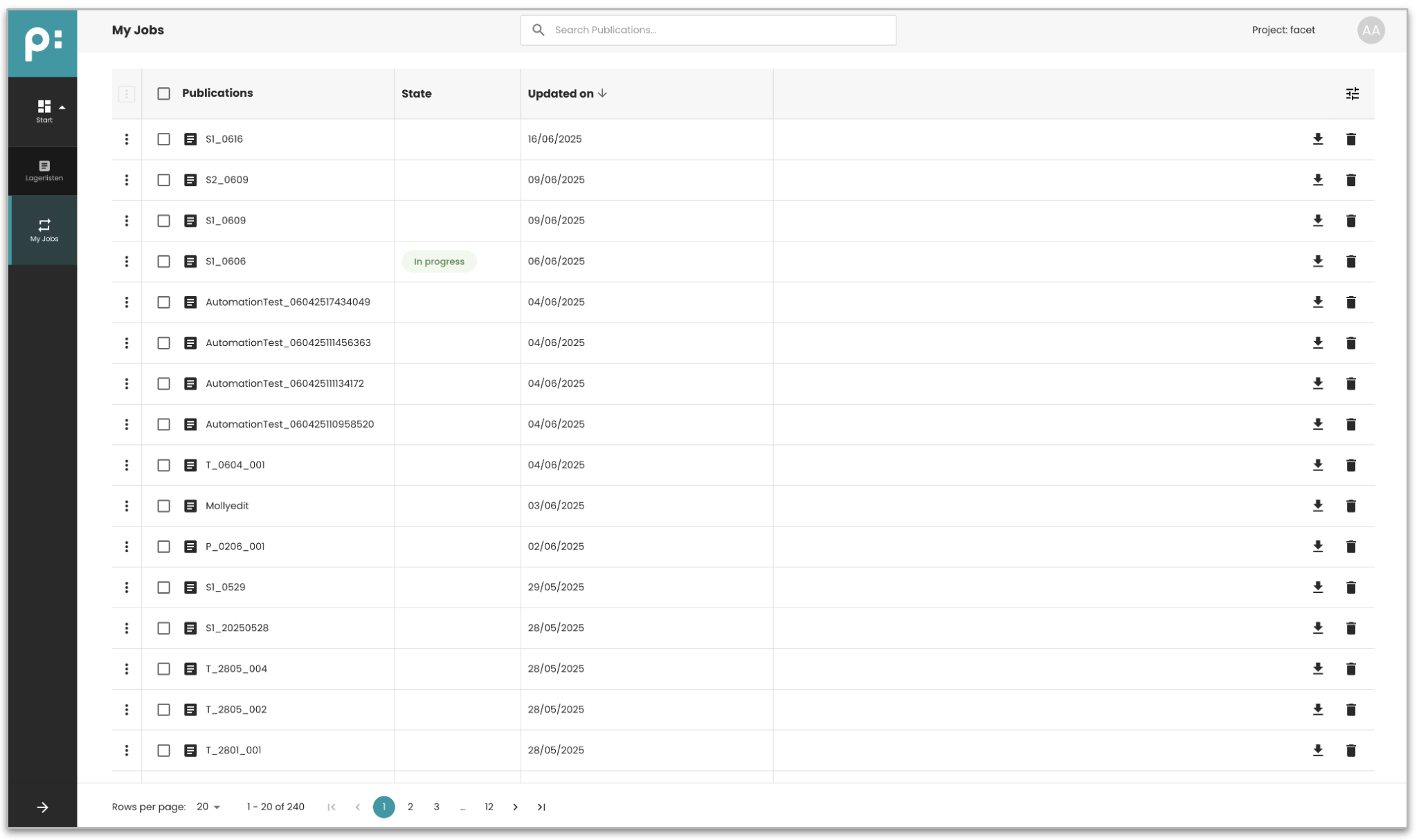
Access the My Jobs section from the W2P main menu. In this stage, publications are displayed by default with the most recently updated items shown at the top, based on the Updated On field.
-
A publication with a State marked as In progress indicates the rendering process is currently running.
-
A publication with a blank state and a download icon indicates the file is ready for download.
-
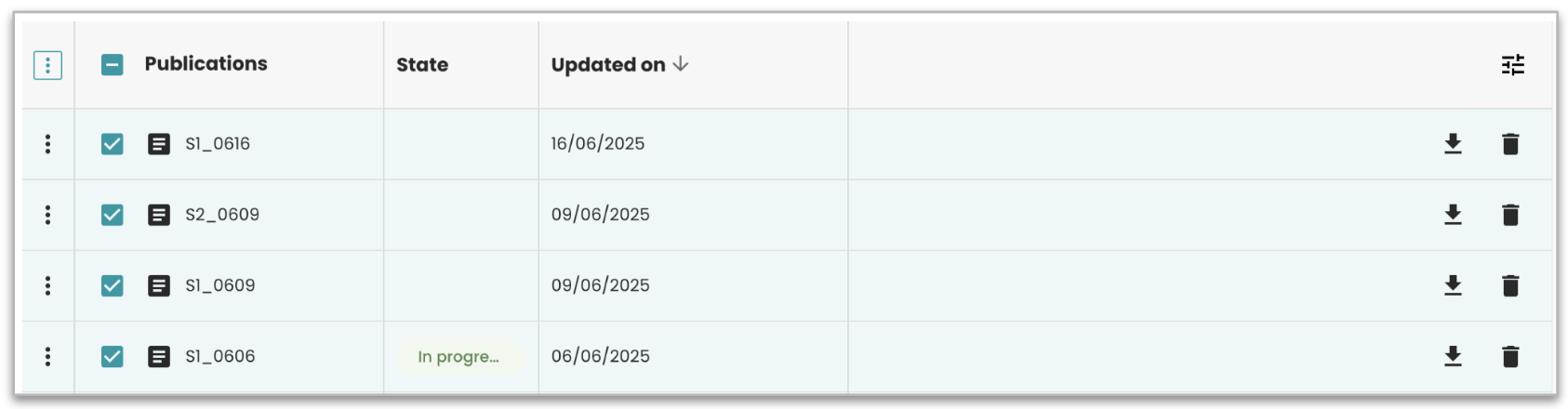
Bulk delete publications: Select two or more entries, click the three-dot icon in the header, and choose Delete.
-
To view detailed job instances, click on a publication with the In progress status. A right panel will appear showing the list of related tasks.
-
To search publications in the list, type keywords in the header.
See also: How to configure My Jobs page to be displayed
Download Behavior
| Scenario | Action |
|---|---|
| 1 file rendered | Direct download |
| More than 1 file rendered | Dialog to select which file to download |
View & Manage News
If you're an admin and want to share announcements or updates with users on the W2P platform, use the News section for in-app communication.
When news items are configured, they appear on the right side of the Start page, automatically filtered and displayed based on the user’s selected language.
Each news item includes:
- Title
- Created Date
- Content
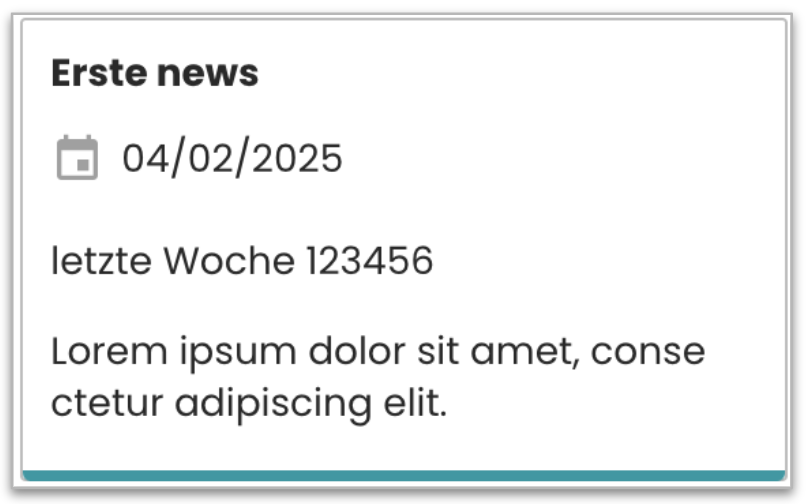
This allows users to easily scan and read relevant information.
See also: How to configure and display News in the backend
Select Area Blocks
When you land on the Start page, you'll see a set of category blocks at the top. These represent the different areas or publication categories you have access to.
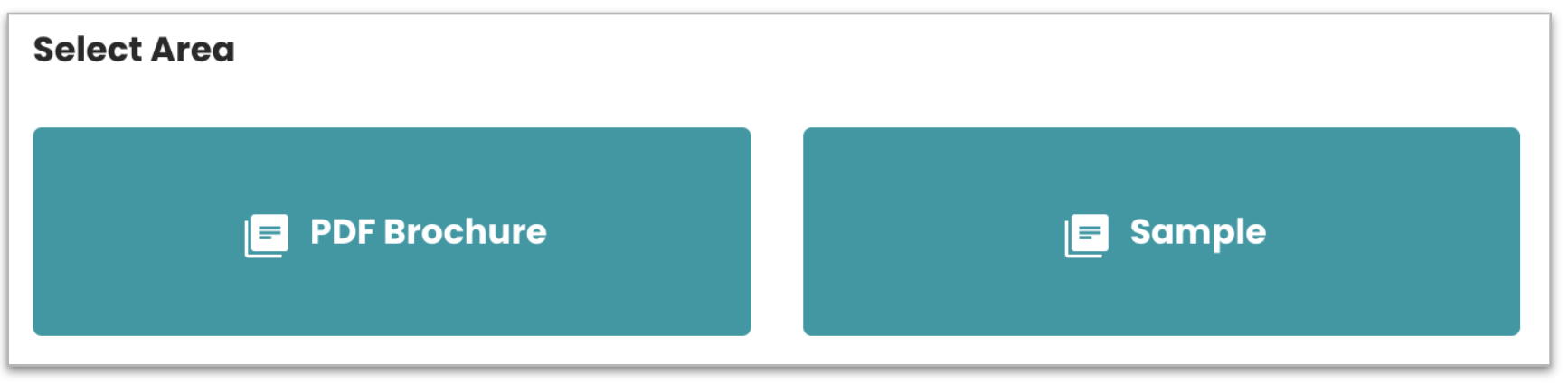 Purpose: Use these blocks to quickly navigate to the relevant category and begin working with publications.
Note: The list and labels of these category blocks are defined in the backend configuration.
See also: How to configure category blocks in the backend
List the Publication Templates
When you land on the Category page, you'll see a set of publication template blocks at the top. These represent the different publication categories available to you.
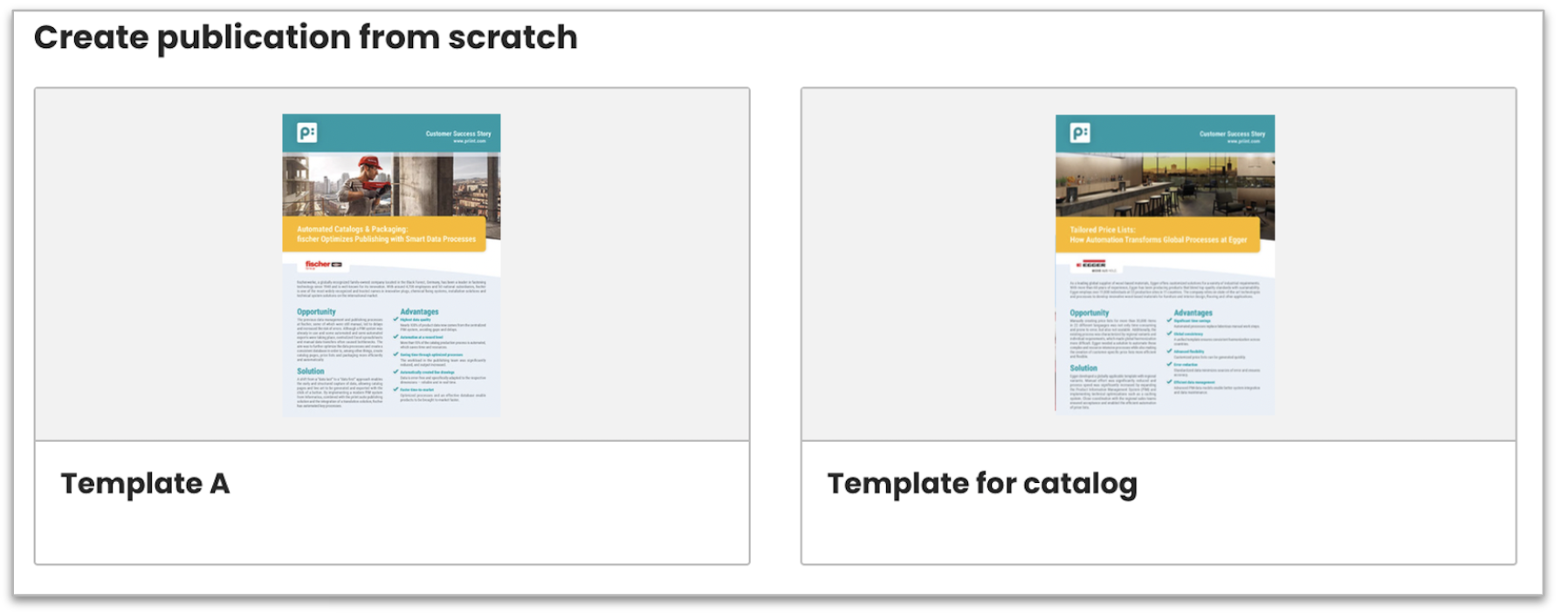
Purpose: Use these blocks to navigate quickly and start working with publications.
Note: The list and labels of these blocks are defined in the backend configuration.
See also: How to configure category blocks in the backend
Using Publication Templates in W2P
When you’re granted access to the W2P platform, your admin will assign the rights necessary to work with publication templates. These templates are starting points for creating new publications and appear at the top of each Category page.
Publication Template Lifecycle
As a regular user, here’s what happens when you create a publication using a template:
Template Access
- You’ll see available templates at the top of each category if your account has access rights.
Creating a Publication
When you select a template, the system duplicates it and creates a new publication:
- All relevant template parameters are copied.
- The status of the new publication is set to Detail information.
- Any linked documents are copied.
- Your user account becomes the owner.
- If configured, relevant teams are assigned automatically.
- System flags such as Is completed publication are reset to avoid workflow issues.
Flow Overview
- You are granted access to the W2P platform.
- Your admin assigns you access rights to templates.
- Templates appear at the top of each Category page.
- You select a template to create a publication.
- The system handles duplication and assigns the correct settings and rights.
Troubleshooting Template Access
Issue: You don’t see any templates in a category
→ Your account hasn’t been assigned to any templates.
Contact your admin to request access.
Issue: You select a template but it redirects you to rendering immediately
→ The template was incorrectly configured.
Contact your admin to correct the setup.
Issue: Some documents from the original template are missing
→ The workflow uses process-based duplication logic.
Contact your admin to include the missing documents.
See also: How to configure to copy target documents in the backend
Issue: The template shows a blank image thumbnail
→ The template hasn’t been rendered yet.
Summary
To create new publications in W2P, you must:
- Have access rights assigned by your admin.
- Be linked to one or more templates per category.
- Use the listed templates at the top of each category as your starting point.
If you’re missing access or see unexpected behavior, contact your admin to review and resolve configuration issues.