Control Access Rights
How Access Rights Work for W2P Roles
To control what you can access and manage in the W2P application, your permissions are defined by your assigned role. These roles are managed by your W2P admin in AdminUI > Roles > W2P Application.
Role Definitions and Permissions
Below is a summary of W2P access rights based on role configurations:
| Role Area | Rights Name | Description |
|---|---|---|
| Landing page management | View the working publications | View, edit, or delete publications listed on the Start page (if granted). |
| Publication Type management | View the completed publications | View and download completed publications. |
| Manage the publications | Create, edit, or delete publications on the Publication Type pages. | |
| My Jobs management | View the publications | View and download publications and their process instances. |
| Manage the publications and their processes | Delete publications. |
What to Expect
- When your role is assigned, you’ll only see the pages and actions your access rights allow.
- If your admin updates your role, your permissions in W2P will update immediately.
- If you don’t have rights to a page or action, W2P will prevent access and show an Access Denied screen.
- If you don't have “Manage the publications” right, all Edit and Delete actions for publications will be hidden on the Category page.
- If you don't have “Manage the publications and their processes” right, all Delete actions for publications will be hidden on the My Jobs page.
If You Can’t Access W2P
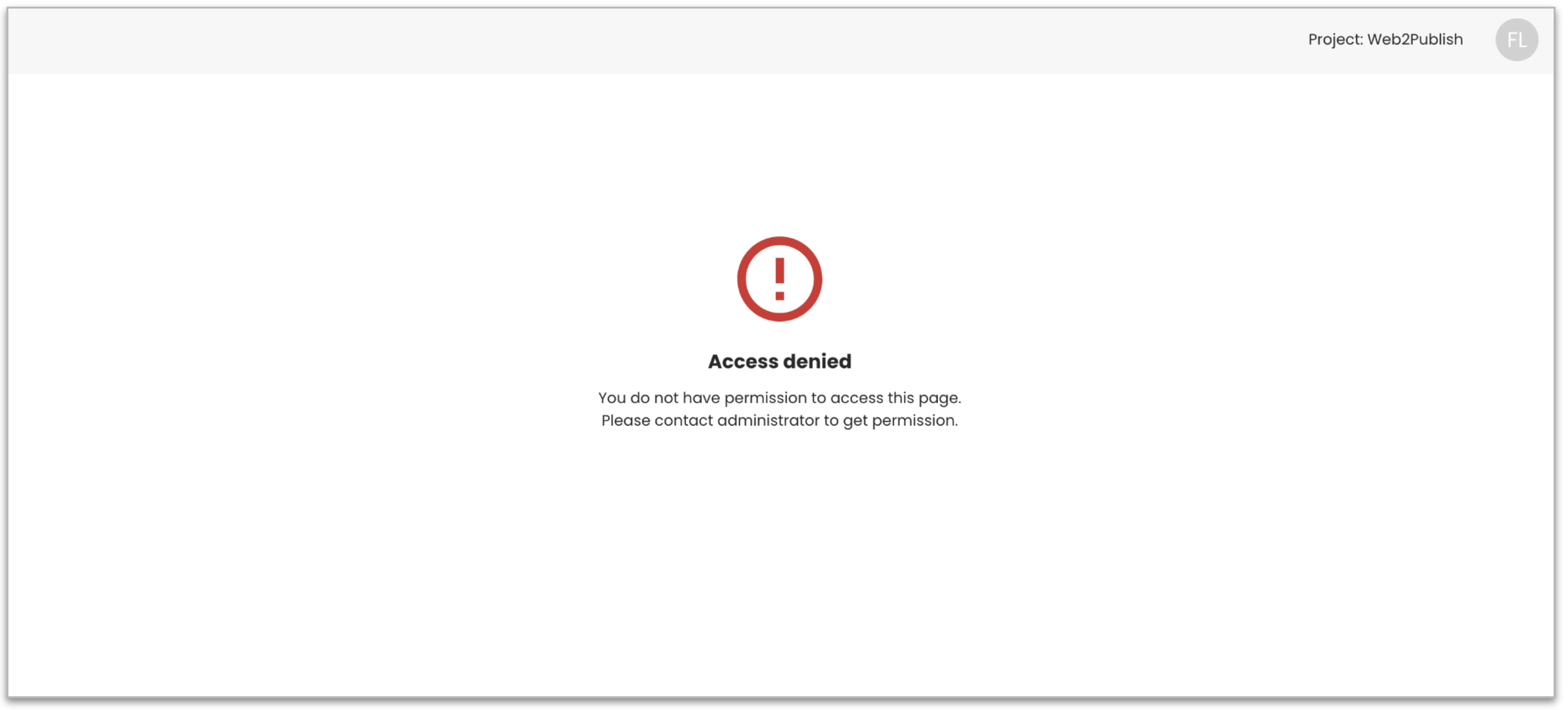
Scenario: You weren’t granted access to the W2P application.
If you try to log in to the W2P module in your browser, you’ll see an Access Denied page.
How Access Rights Work for Publications
Even if you have access to pages like Start, Category, or My Jobs, your permissions for individual publications may still be limited. W2P applies access logic consistently across all pages.
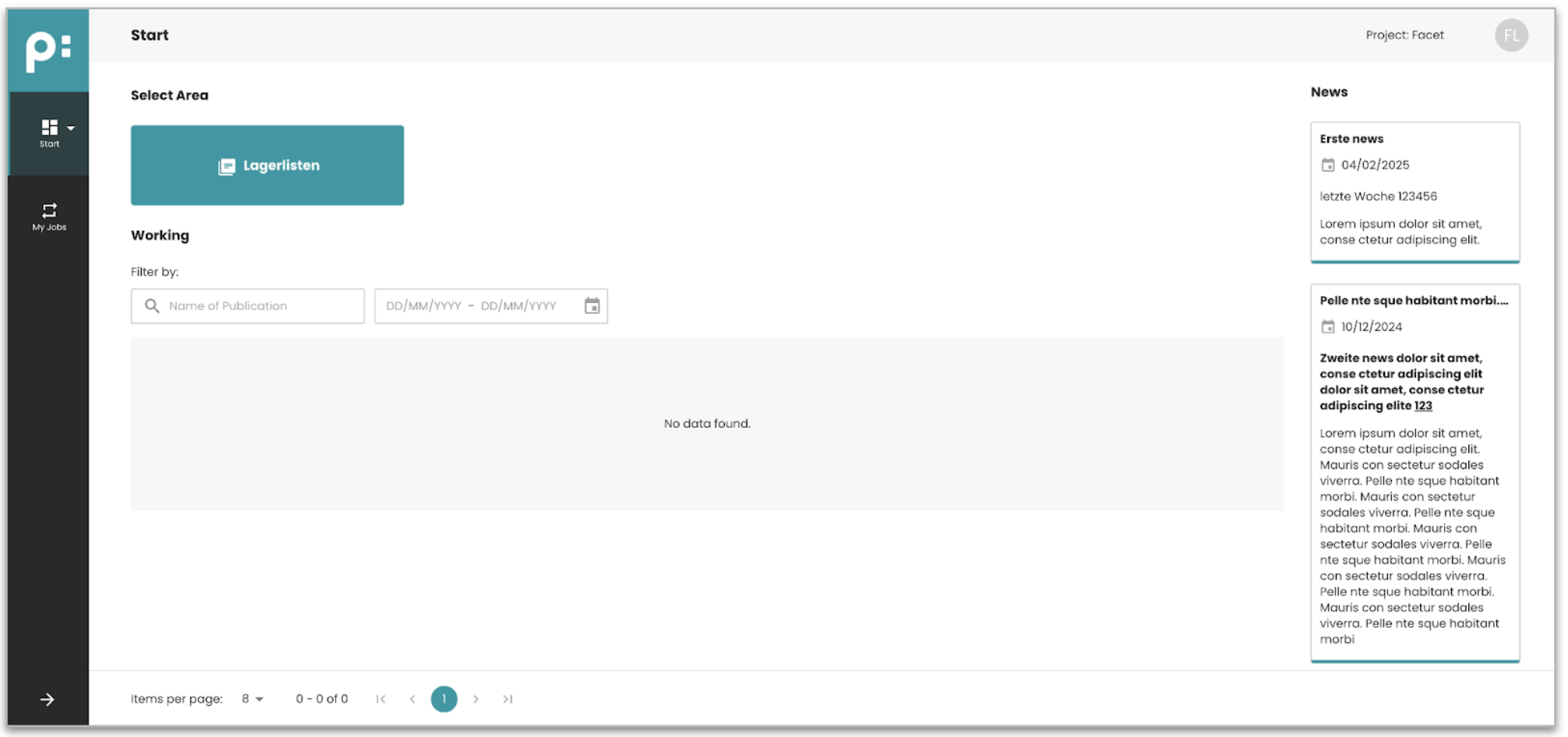
Publication Rights
To view and manage a publication in W2P, you must have the appropriate publication-level rights.
These rights determine whether you can:
-
View the publication
-
Edit its content
-
Delete it
If you do not have the required rights, the publication may be hidden or appear in a read-only state.
A detailed explanation of publication rights can be found here: How to assign publication rights for users
Executing Publication Processes
When you open a publication, you may be guided into a workflow process (for example, moving into a rendering or approval step). This workflow is controlled by the process associated with that publication.
To perform any actions within these process steps, you must have a role that includes process execution permissions.
| Role Area | Right | Description |
|---|---|---|
| Publication rights | Manage user assignment | Update publication details and assign users. |
| View publications list | See the list of available publications. | |
| View teams list | See the list of configured teams. | |
| View publication types list | View the list of available publication types. | |
| Process execution | View process instances list | This right allows you to execute and view processes that are assigned to the publication. |
| Edit process instances list | This right allows you to execute and view processes that are assigned to the publication. | |
| View deployed Camunda process | This right allows you to execute and view processes that are assigned to the publication. | |
| Claim and completed tasks | This right allows you to execute and view processes that are assigned to the publication. |
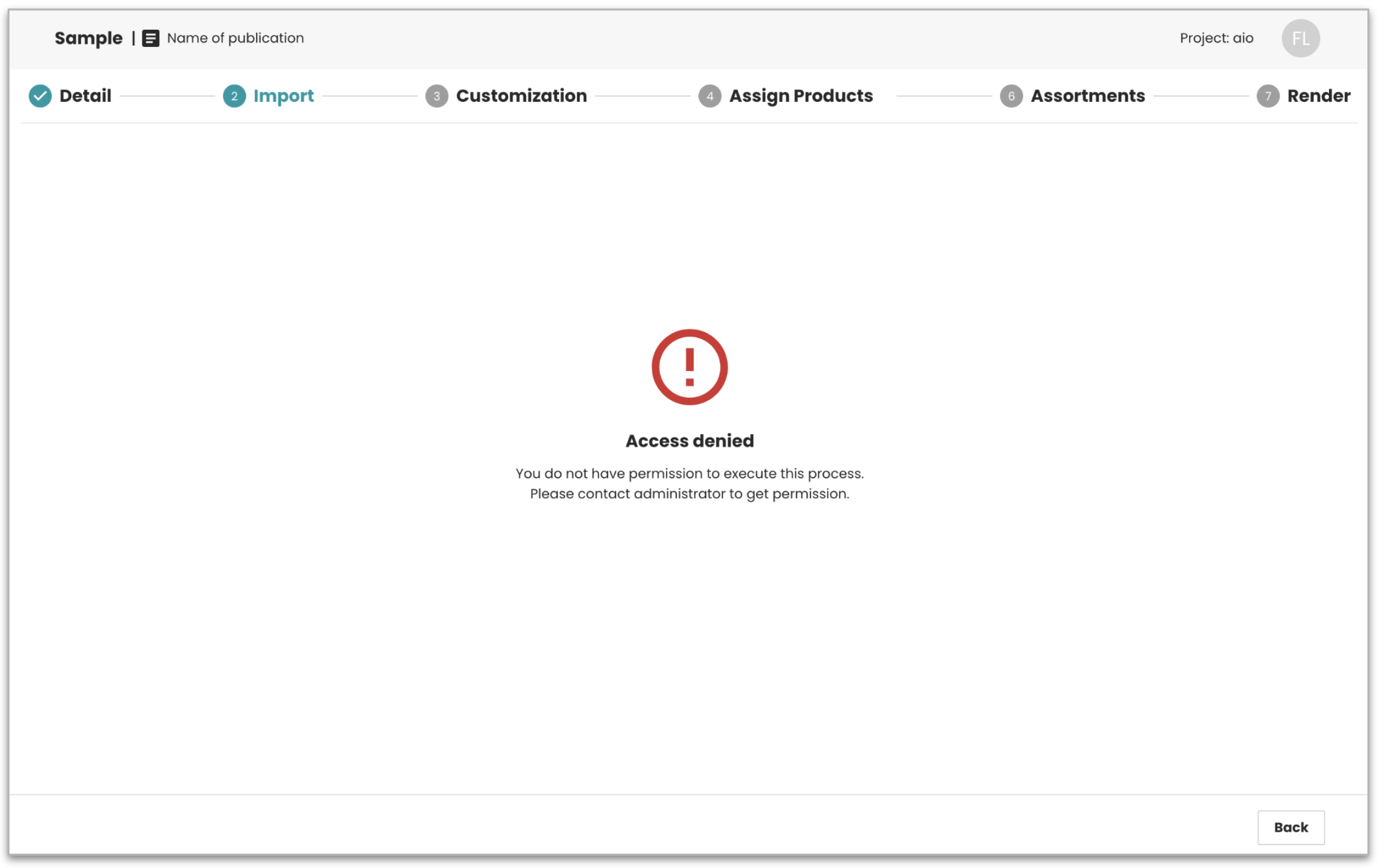
If you do not have these permissions, the publication will still open, but when the workflow begins, you will see an Access Denied message and will not be able to continue.
Use Case: your account is assigned view-only access.
You can enter every page but only have View rights for certain publications. W2P reflects those limits as follows:
Start Page
- Edit and Delete icons: Disabled.
- Tooltips on hover:
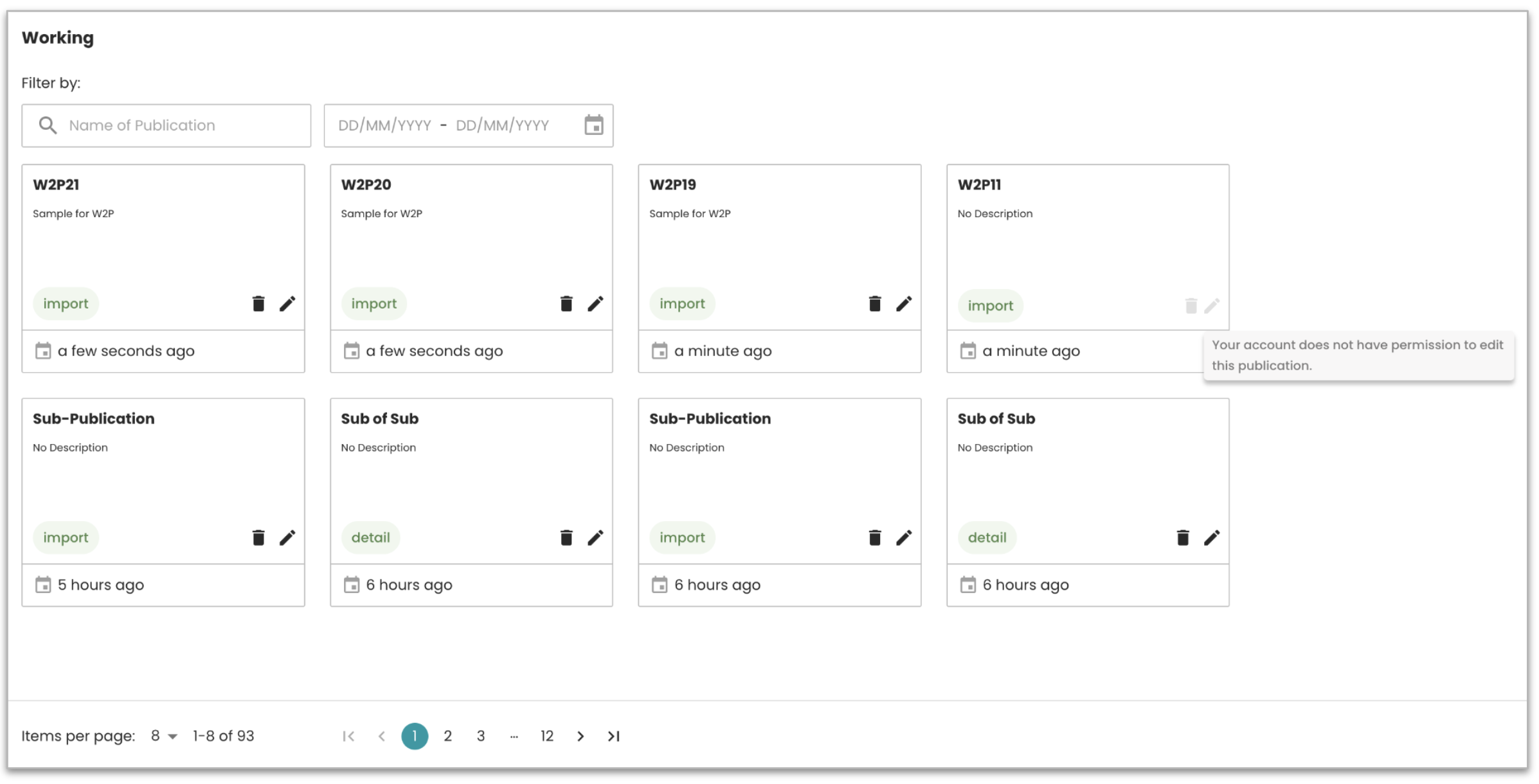
- "Your account does not have permission to edit this publication."
- "Your account does not have permission to delete this publication."
Widget interaction: You can’t click the publication tile to open the wizard or details view.
Category Page (Publication Types)
- Edit and Delete icons: Disabled.
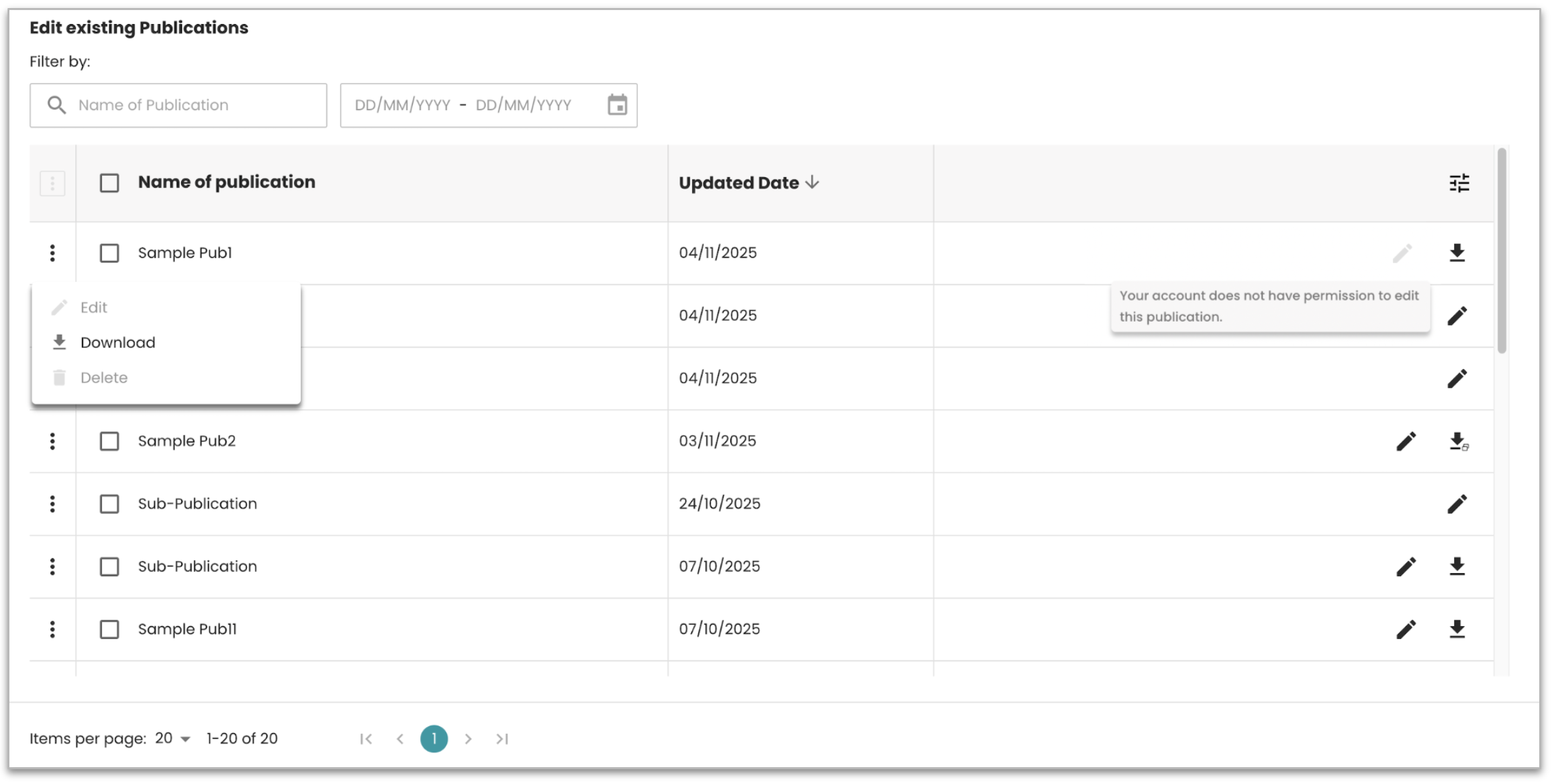
- Tooltip: "Your account does not have permission to edit this publication."
My Jobs Page
- Delete icon: Disabled.
- Tooltip: "Your account does not have permission to delete this publication."
Use Case: your account has view and edit rights, but cannot delete publications.
You can edit publication content but cannot delete it:
Start Page
- Delete icon: Disabled.
- Tooltip: "Your account does not have permission to delete this publication."
Category Page
- Delete icon: Disabled for publications where you don’t have delete rights.
My Jobs Page
- Delete icon: Disabled.
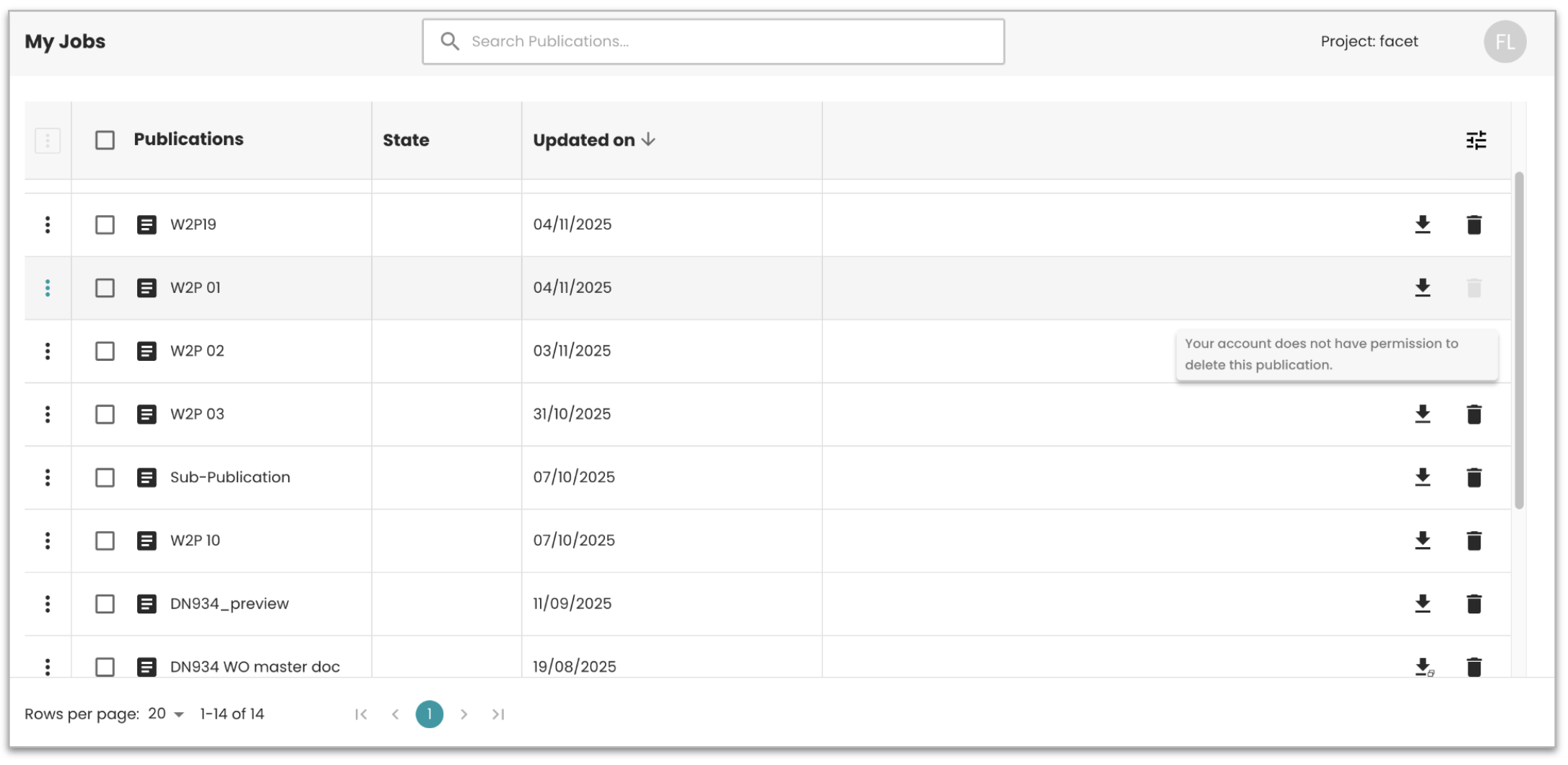
- Tooltip: "Your account does not have permission to delete this publication."
Heads up: If you’re unsure why an icon is disabled or why you can’t click a widget, hover over it. W2P provides tooltips explaining which permission is missing.
To review or adjust your rights, ask your admin to check:
- AdminUI > Publication rights
- Your assigned publication permissions.
How to Use Teams to Manage Publication Access
Teams feature helps manage access for multiple users at once. Instead of assigning rights to each user individually, you can assign access to a group.
To make this work, your account must have the required Publication Rights below.
| Role Area | Right | Description |
|---|---|---|
| Publication rights | Manage user assignment | Update publication details and assign users. |
| View publications list | See the list of available publications. | |
| View teams list | See the list of configured teams. | |
| View publication types list | View the list of available publication types. |
- If you want access to the same publications as your group, you must be added to the relevant team.
- Once added, you’ll see publications assigned to you and those assigned to your team.
- You and your teammates will have the same level of access (based on the team’s configuration).
- Behind the scenes, when a new publication is created, one or more teams may be auto-assigned based on backend settings.
- If you’re missing access, ask your admin to add you to the right team so you get permissions automatically.
See also: How to assign teams to publications in the backend.
Summary of the end-to-end access configuration flow-
Assign W2P Role in AdminUI → This allows you to access W2P pages (Start, Category, My Jobs).
-
Assign Publication Rights → Determines which publications you can see and whether they can view, edit, or delete them.
-
If the publication includes process steps (e.g., rendering, import) → Assign Process Execution Rights → Otherwise, you will be blocked with "Access Denied" when the workflow begins.
-
(Optional) Assign User to a Team → Teams provide shared publication access and reduce repeated assignments.
Result: you can access and manage the relevant publication in W2P, according to their granted permissions.
Why this flow matters| Permission Type | Controls | Without It |
|---|---|---|
| W2P Role | Ability to access W2P pages | You see Access Denied when opening W2P |
| Publication Rights | Visibility and edit/delete permissions on specific publications | Publication is hidden or read-only |
| Process Execution Rights | Ability to run workflow steps | Publication opens → but workflow triggers → Access Denied |
| Team Assignment (optional) | Shared access across multiple users | You must be granted individually to each publication |