Application Switcher
To use the Application Switcher, please follow the three steps below.
1. User Permissions
Make sure that users have been granted the required permissions to switch between applications.
Users without the appropriate permissions will not be able to access or use the App Switcher functionality.
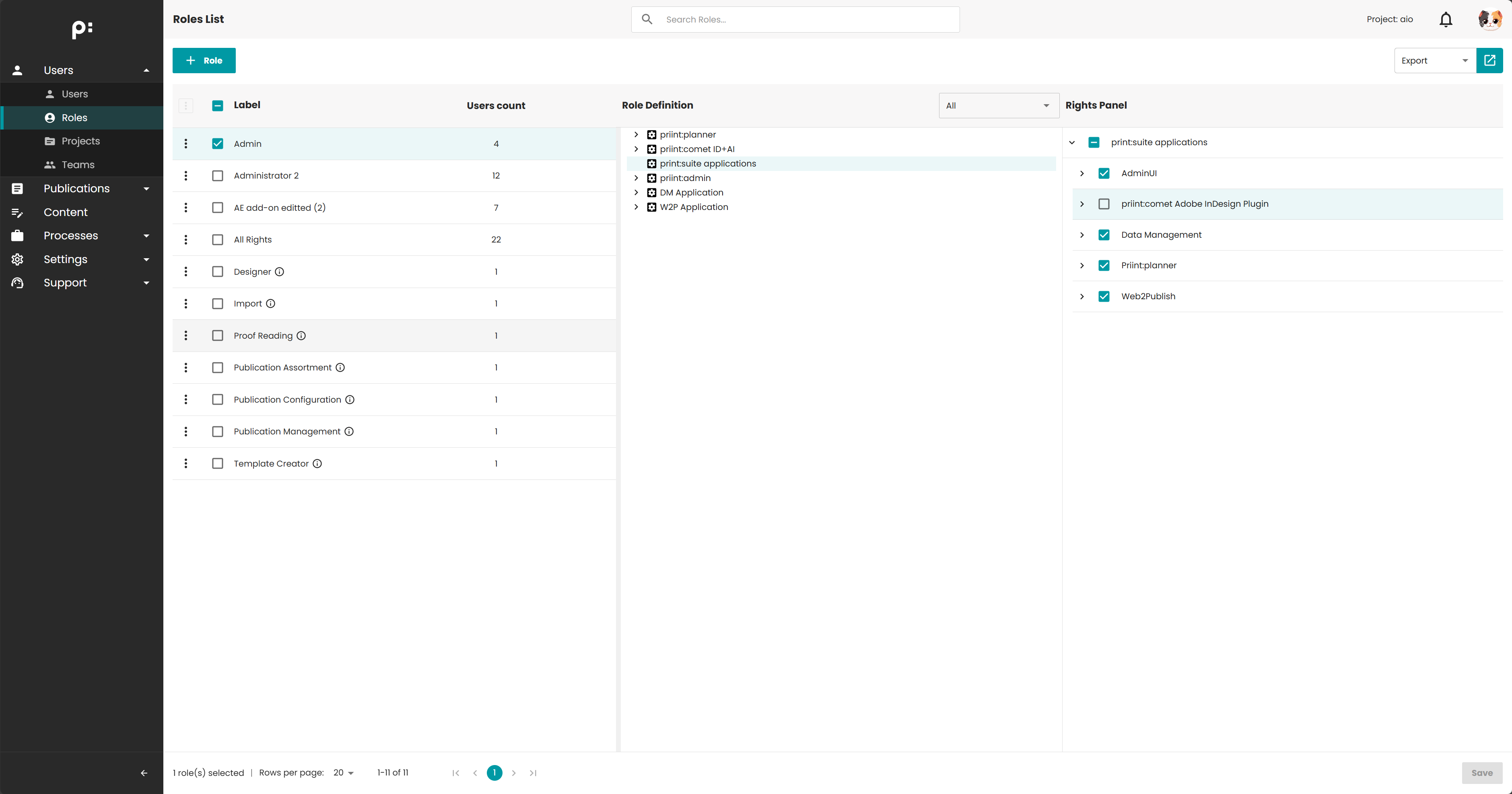
2. AuthService Configuration
Ensure that the AuthService is configured correctly and is actively used by the application. For more detail
The App Switcher relies on AuthService to:
- Identify the authenticated user
- Validate user permissions
- Control access to application switching
Incorrect or missing AuthService configuration may result in:
- App Switcher not being displayed
- Permission validation failures
- Unexpected authorization errors
For example:
<authService>
<apps>
<app name="priint:neowise" id="neowise" visible="true">
<uri>/Neowise/</uri>
</app>
<app name="priint:admin" id="admin" visible="true">
<uri>/Admin/</uri>
<sessionCookieName>adminSessionId</sessionCookieName>
</app>
<app name="priint:data-management" id="data-management" visible="true">
<uri>/dm</uri>
<sessionCookieName>dataManagementSessionId</sessionCookieName>
</app>
<app name="priint:w2p" id="web2publish" visible="true" default="true">
<uri>/w2p</uri>
<sessionCookieName>w2pSessionId</sessionCookieName>
</app>
<app name="priint:comet" id="comet" visible="false">
<uri>http://localhost:{referrerPort}/accept?server={requestURI}&login={userName}&project={project}&language={locale}&sessionId={sessionId}</uri>
</app>
</apps>
</authService>
3.Application Identifiers
The correct application identifier (id) ensures that the appropriate applications are displayed in the App Switcher panel.
| Application | Identifier (id) |
|---|---|
| Neowise | neowise |
| Admin | admin |
| Data Management | data-management |
| Web2Publish | web2publish |
⚠️ Theidvalue must match the application identifier expected by the App Switcher.
A mismatch may cause the application to be hidden or inaccessible.