PROCESS Step
Overview
The PROCESS step is used to execute a backend Camunda process as part of a wizard workflow.
It is typically placed after metadata or configuration steps, where the user is ready to start an automated operation such as:
- Import data
- Running a publication workflow
- Performing validations or transformations
- Exporting rendered documents
The PROCESS step provides UI feedback, monitors progress, and updates the step status automatically.
Key Features
- Executes a Camunda process using the configured
process_def_key - Displays real-time or periodic status updates
- Can block progression until the process finishes
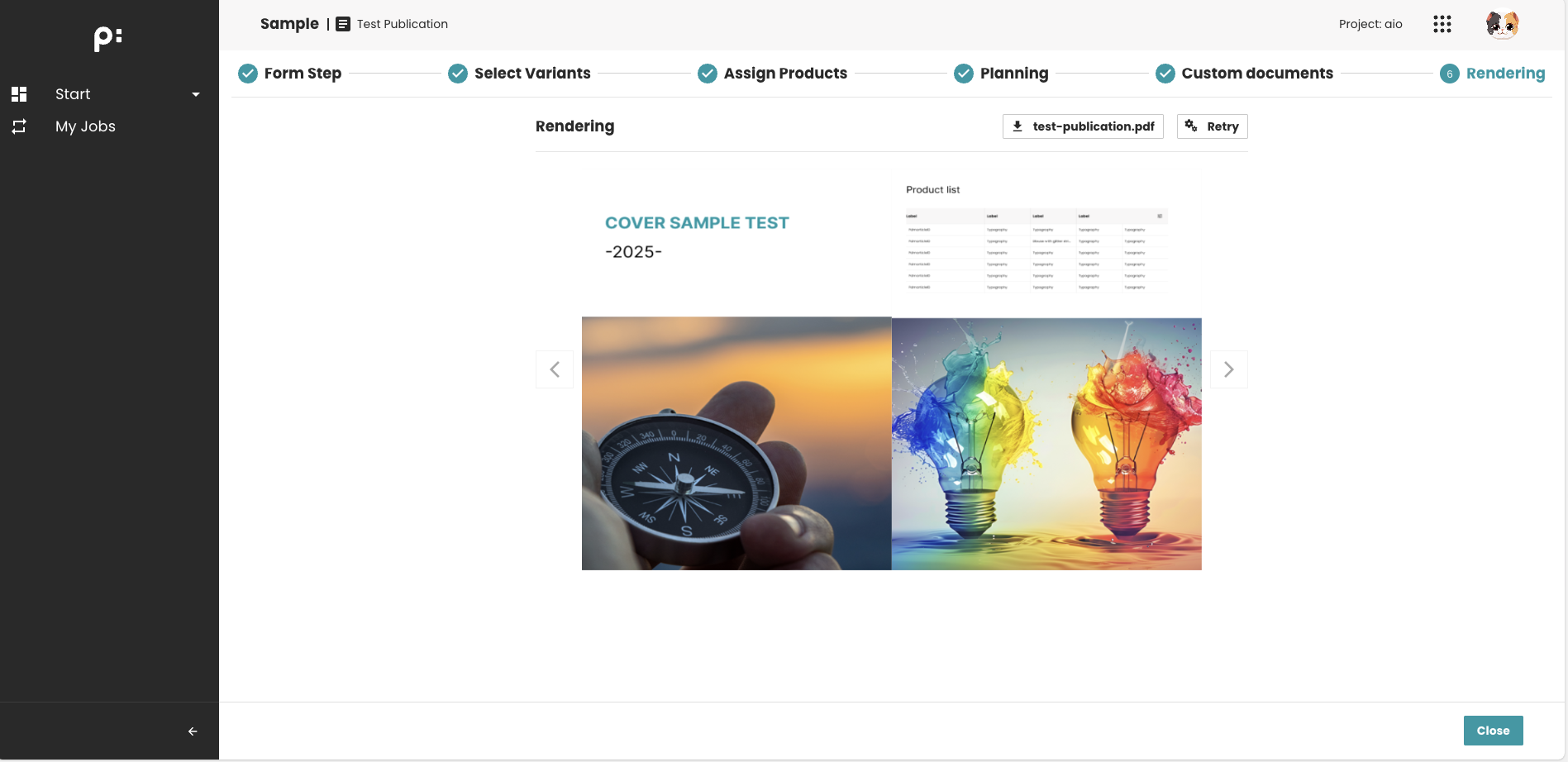
- Supports download links for generated output files (e.g., PDFs)
- Allows retrying or restarting the process in case of failure
- Can show preview images generated by the process
- Optional autorun mode: process starts automatically when entering the step
Behavior Summary
Process Execution
When the user enters the step:
- If
autorun=true, the process starts immediately - Otherwise, the user must click Execute
The step displays:
- Current process state
- Current user tasks (in multiple levels)
- Progress completed tasks
Completion Rules
The step is considered complete when:
- The Camunda process reaches a end state
- Mandatory outputs (if any) are available
If required=true, the wizard cannot continue unless:
- The process has completed successfully
- Or the user explicitly retries after a failure
Blocking Behavior
If blockOnRunning=true, the step prevents saving in other steps until the process finishes.
Sample Configuration
<wizardSteps>
    <wizardStep id="render_process">
        <label>Rendering</label>
        <type>PROCESS</type>
        <status>rendering</status>
        <required>true</required>
        <parameters>
            <!-- The Camunda process definition key -->
            <parameter key="process_def_key" id="process_def_key_1">render_process</parameter>
            <!-- Optional: enables or disables the `Download` feature. Default value is `true` if not configured -->
            <parameter id="export">true</parameter>
            <!-- Optional: enables or disables the `Preview` feature. Default value is `false` if not configured -->
            <parameter id="preview">true</parameter>
            <!-- Optional: defines the path for obtaining preview images. This parameter is only effective if `preview` is set to `true` -->
            <parameter id="preview_path">/opt/pubserver/userdata/download/w2p/preview/</parameter>
            <!-- Optional: defines the label for the `Execute` button on the UI. Supports language-dependent translation. Default value is `Execute` (English) if not configured -->
            <parameter id="execute_label">execute_label</parameter>
            <!-- Optional: defines the label for the `Retry` button on the UI. Supports language-dependent translation. Default value is `Retry` (English) if not configured -->
            <parameter id="retry_label">retry_label</parameter>
            <!-- Optional: specifies the icon for the `Retry` button on the UI, currently, we only support 4 icons: `add`|`download`|`sync`|`setting`. The Process Type icon will be used if not configured -->
            <parameter id="retry_icon">sync</parameter>
            <!-- Optional: enables or disables the `Autorun` feature. Effective only if only one process definition key is configured. Default value is `false` if not configured -->
            <parameter id="autorun">true</parameter>
            <!-- Optional: enables or disables the `Completed Tasks` UI section. Default value is `true` if not configured -->
            <parameter id="show_completed_tasks">false</parameter>
            <!-- Optional: enables or disables the feature to stop/terminate the active instance. Default value is `true` if not configured -->
            <parameter id="stoppable">false</parameter>
        </parameters>
    </wizardStep>
</wizardSteps>
Sample Screenshots
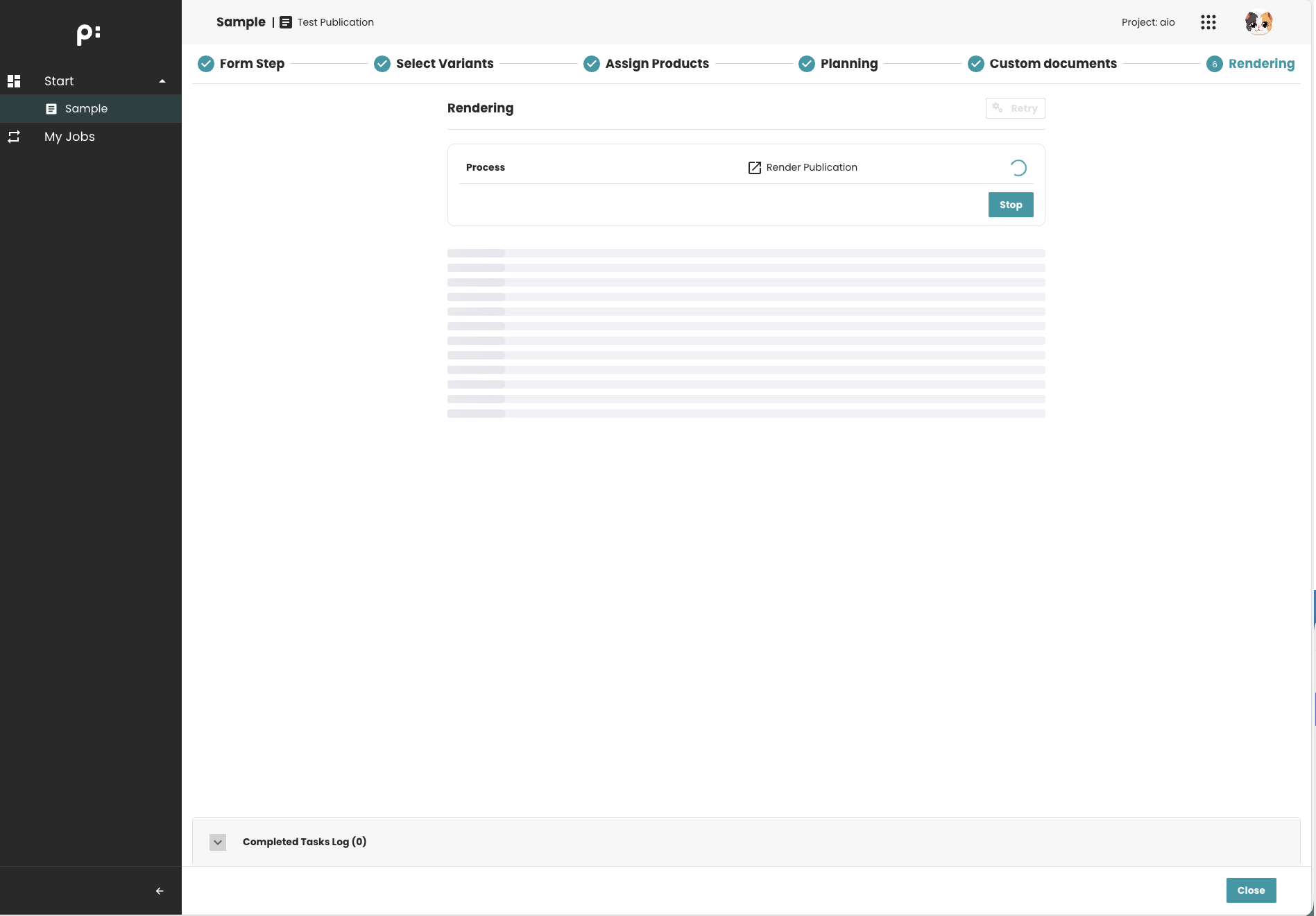
Process is starting
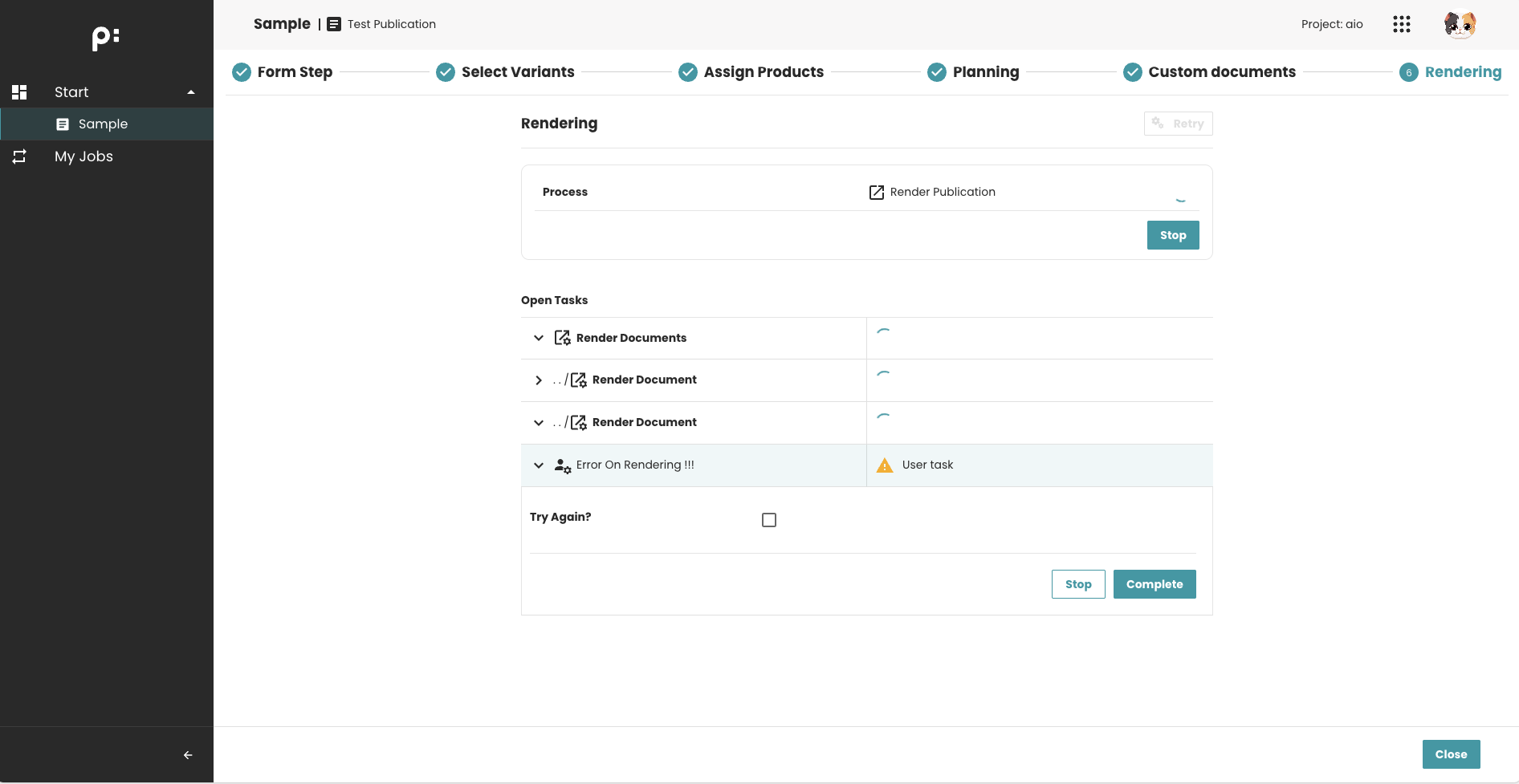
Current user task list
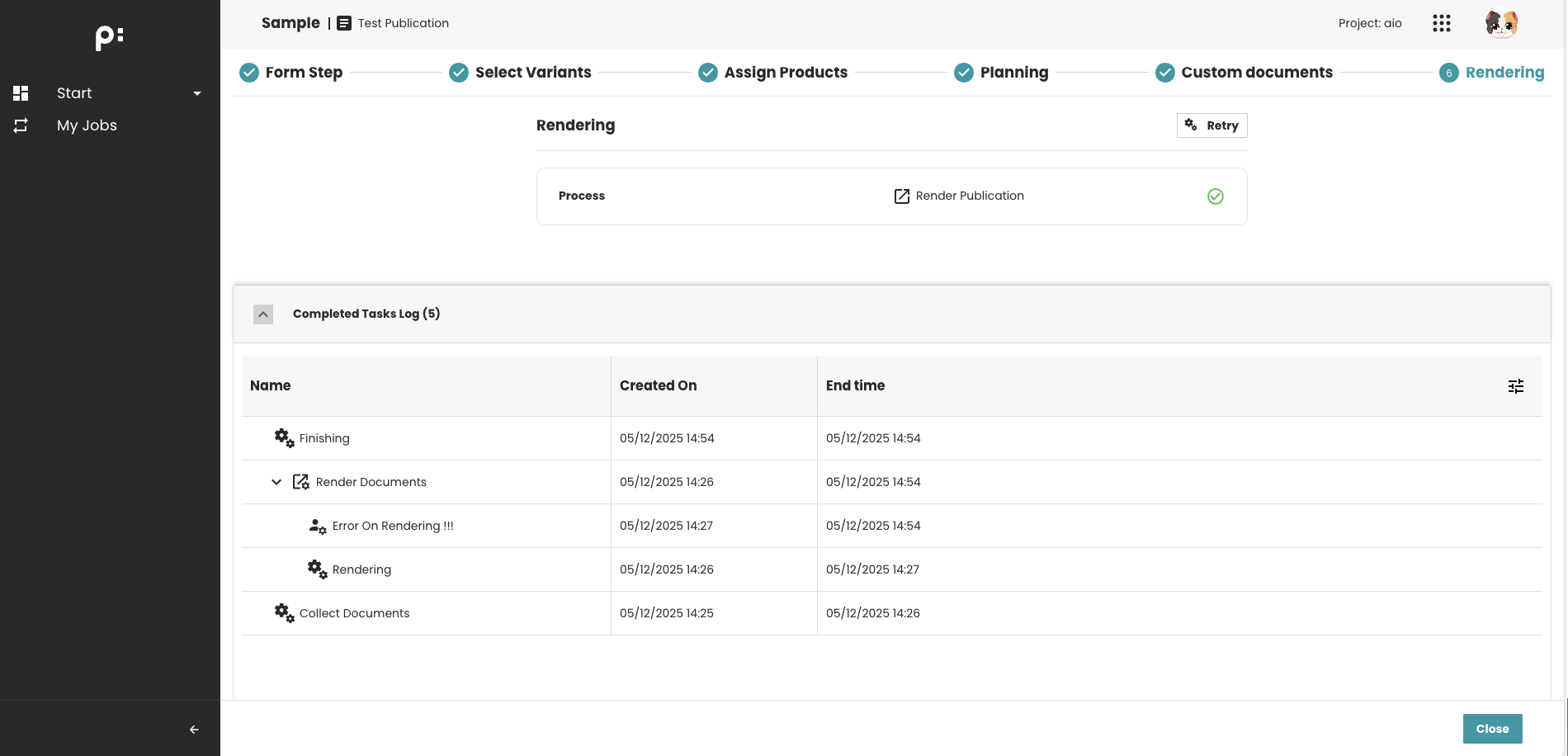
Process is completed, the completed tasks can be shown as a tree
Download process is finished, preview is shown and download is available
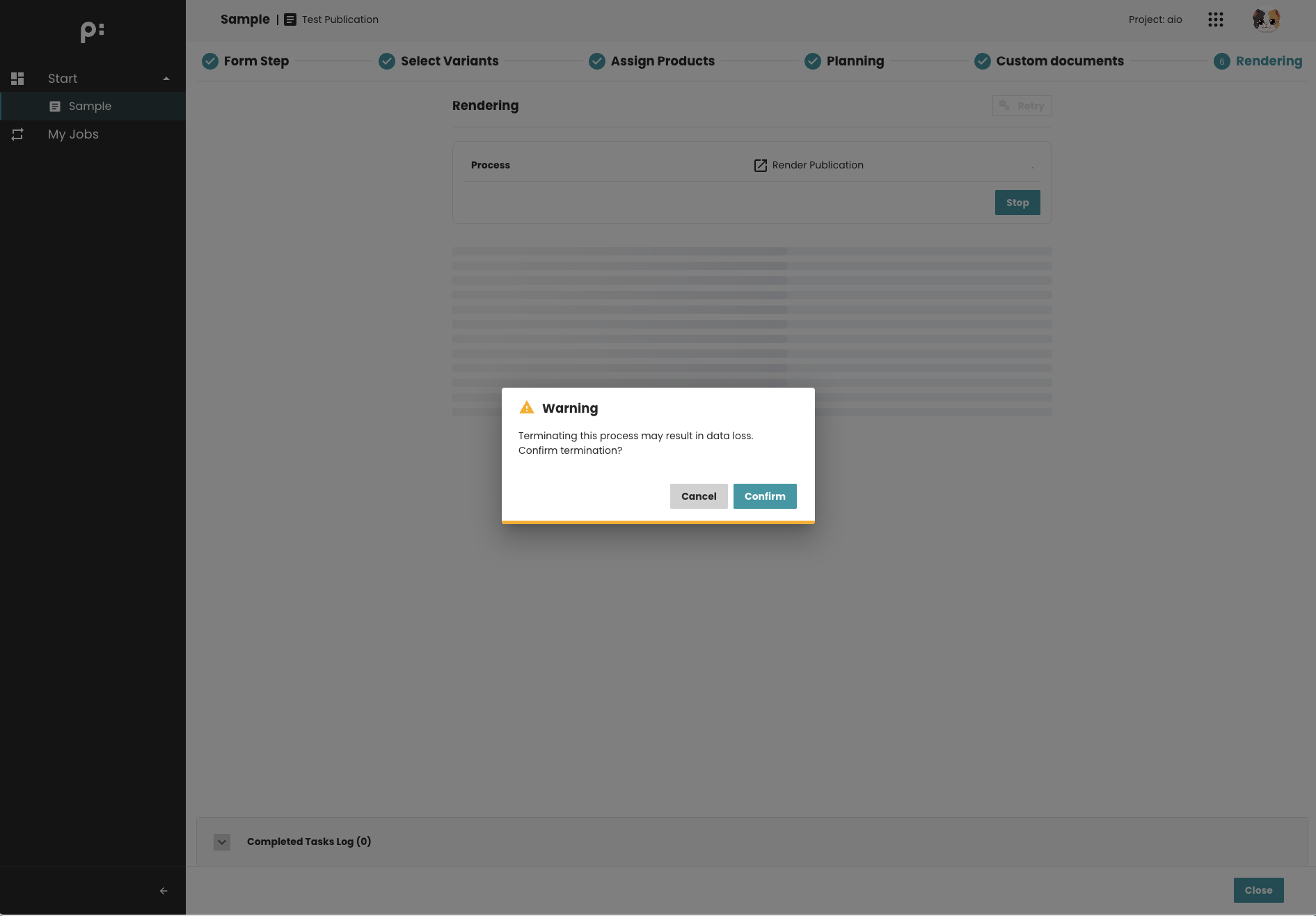
The process can be stopped, a confirm popup is required.
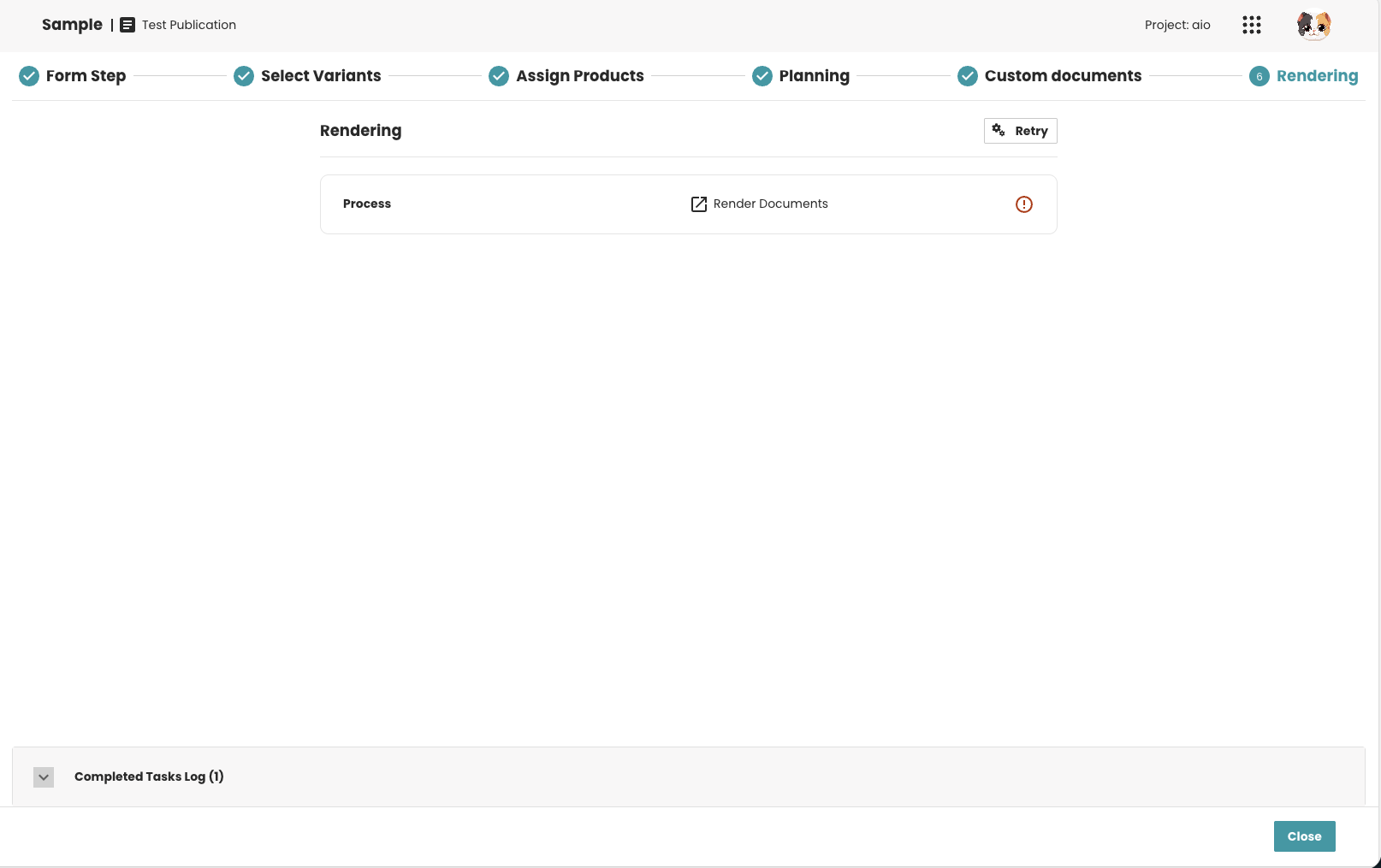
If the process is terminated,
Retrybutton is enabled to allow a rerun.
When to Use This Step
Use the PROCESS step when:
- You need to run an automated backend workflow
- A user must explicitly confirm or review the result
- A process renders documents or generates files...
- You want to enforce waiting for completion before continuing
Examples:
- Rendering publications
- Generating preview images
- Importing document plannings
- Running data synchronization jobs
Notes
- Must define a valid
process_def_key; otherwise, the step will fail to start. - Autorun is useful for flows where user interaction is not needed.