PLANNING_TREE Step
Overview
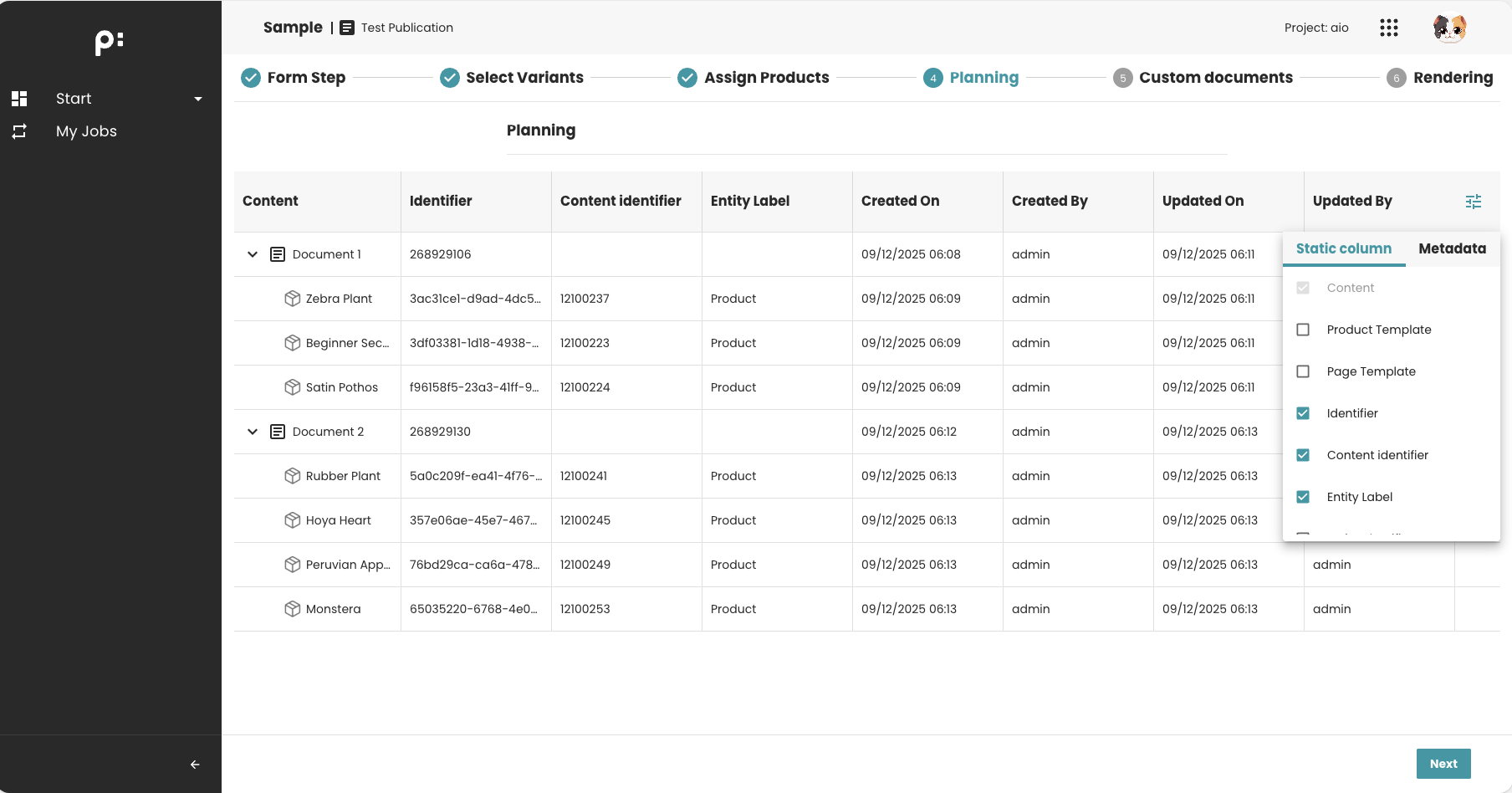
The PLANNING_TREE step displays the publication’s planning structure in a hierarchical tree view. It is typically used to show documents and planning units along with their configured content metadata columns.
Common use cases include:
- Reviewing publication structure
- Displaying planning units in a tree
- Showing content metadata values in columns
- Providing context before other wizard steps
Key Features
- Hierarchical tree display (expand/collapse)
- Required columns and default columns defined by backend configuration (ISON)
- Displays content metadata for each planning node
- Often used as read-only informational step
Behavior Summary
Tree Loading
When the user enters the step:
- The frontend loads the planning structure from the backend
- Columns are shown based on backend configuration
- Branches can be expanded to view nested items
Interaction Behavior
Typically read-only.
Users can:
- Expand/collapse nodes
- View column values
- Inspect planning hierarchy
Sample Configuration
<wizardSteps>
    <wizardStep id="planning_overview">
        <label>Planning Overview</label>
        <type>PLANNING_TREE</type>
        <status>planning_overview_status</status>
        <required>false</required>
        <parameters>
            <!-- Optional: specifies static and metadata columns to configure the tree. Default: all static columns and available content metadata will be shown -->
            <parameter key="entity_column" id="static_columns">static_columns</parameter>
            <parameter key="entity_column" id="metadata_columns">metadata_columns</parameter>
        </parameters>
    </wizardStep>
</wizardSteps>

<entityColumns>
<entityColumn type="static" id="static_columns">
    ...
</entityColumn>
<entityColumn type="metadata" id="metadata_columns">
    ...
</entityColumn>
</entityColumns>
When to Use This Step
Use the PLANNING_TREE step when you need to:
- Show the publication structure
- Provide context before editing or assignment steps
- Visualize planning content metadata
- Allow users to review documents and planning data in a structured way
Typical examples:
- Showing structure after product assignment
- Presenting planning elements during workflow setup
Notes
- Columns are defined by backend configuration: entity columns.
- Editing capabilities depend entirely on backend implementation.
- No custom parameters should be added unless supported by your platform version.