Wizard Steps – Overview
Introduction
A Wizard consists of multiple Wizard Steps, each responsible for a specific part of the workflow. A Wizard Step defines:
- What task should be performed
- How the UI behaves for that step
- Which configuration parameters apply
- Whether the user must complete the step before continuing
Wizard Steps are fully configurable and reusable, allowing different wizards to share the same building blocks.
What a Step Contains
Each step includes:
- ID — unique identifier
- Label & Description — displayed in the UI, supported language-dependent translation.
- Step Type — determines how the step works
- Status — tracks progress
- Required flag — must be completed before continuing
- Optional behaviors like autoSave or blocking while running
- Parameters — configuration options specific to each type
Supported Step Types
Below is a summary of all supported step types. Each has its own dedicated documentation page.
FORM
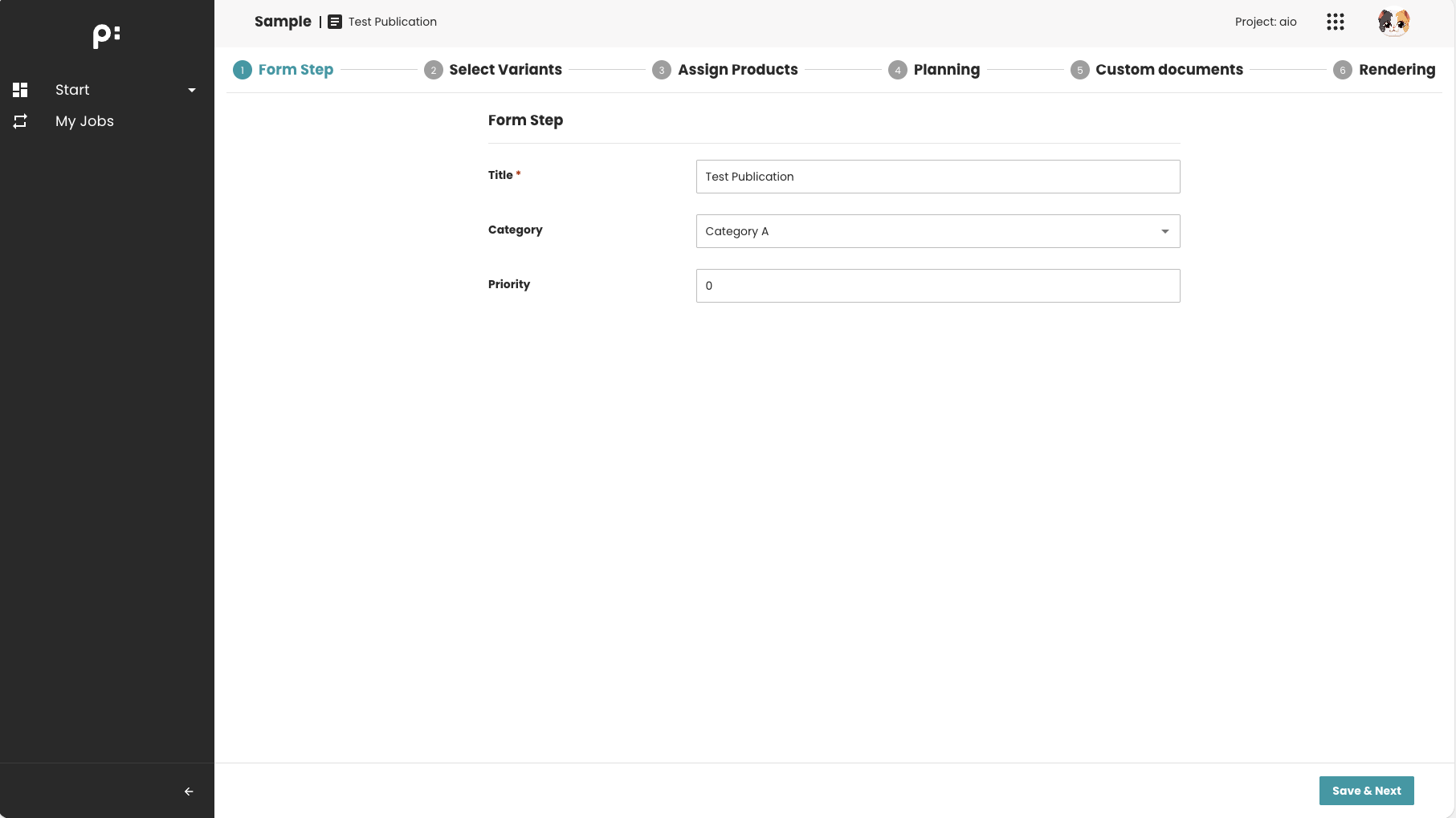
Displays a dynamic form used to edit metadata for a publication. Supports template duplication and optional post-duplication process execution.
PROCESS
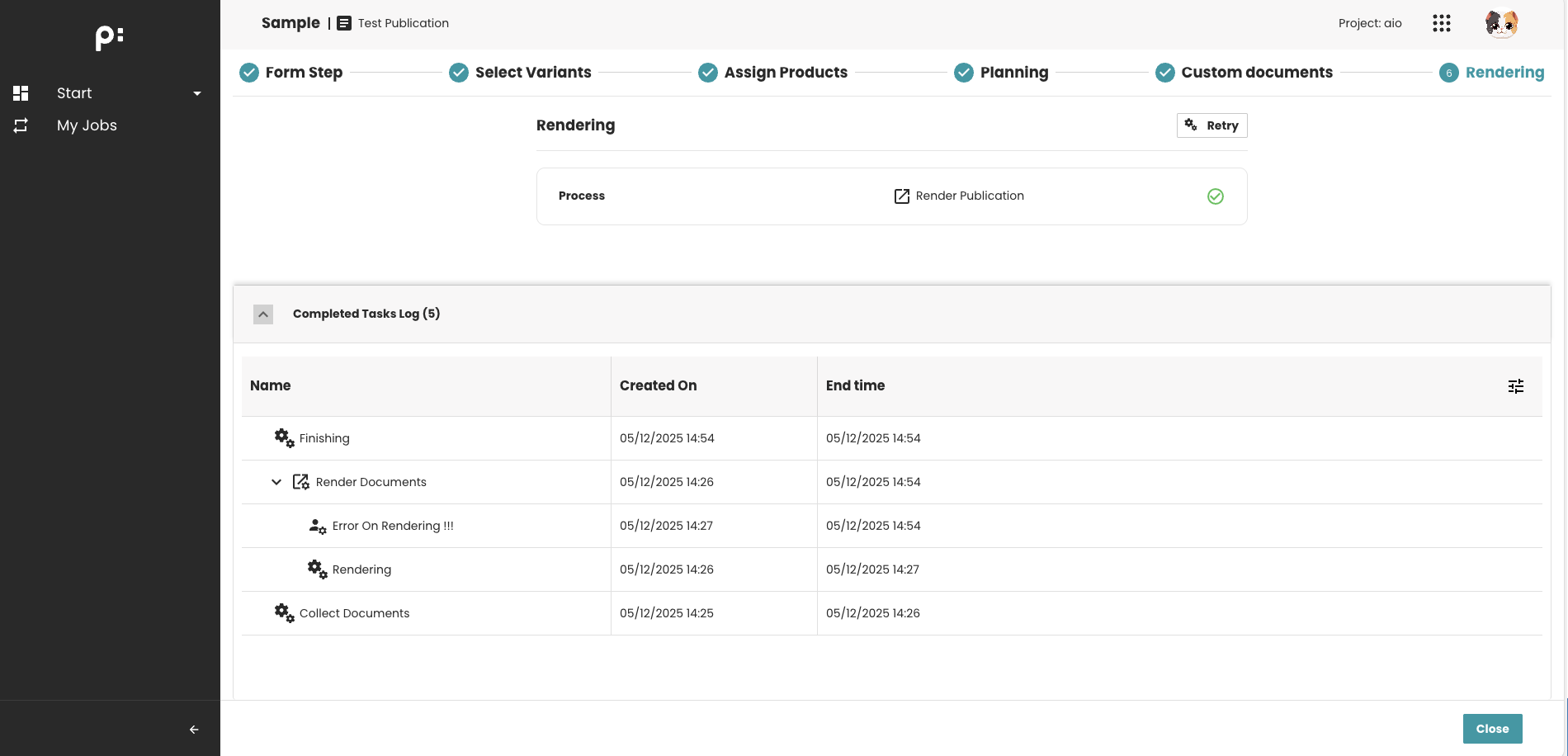
Runs a Camunda process on the active publication. Supports preview images, stopping, retrying, downloading exported files.
TABLE_SELECTION
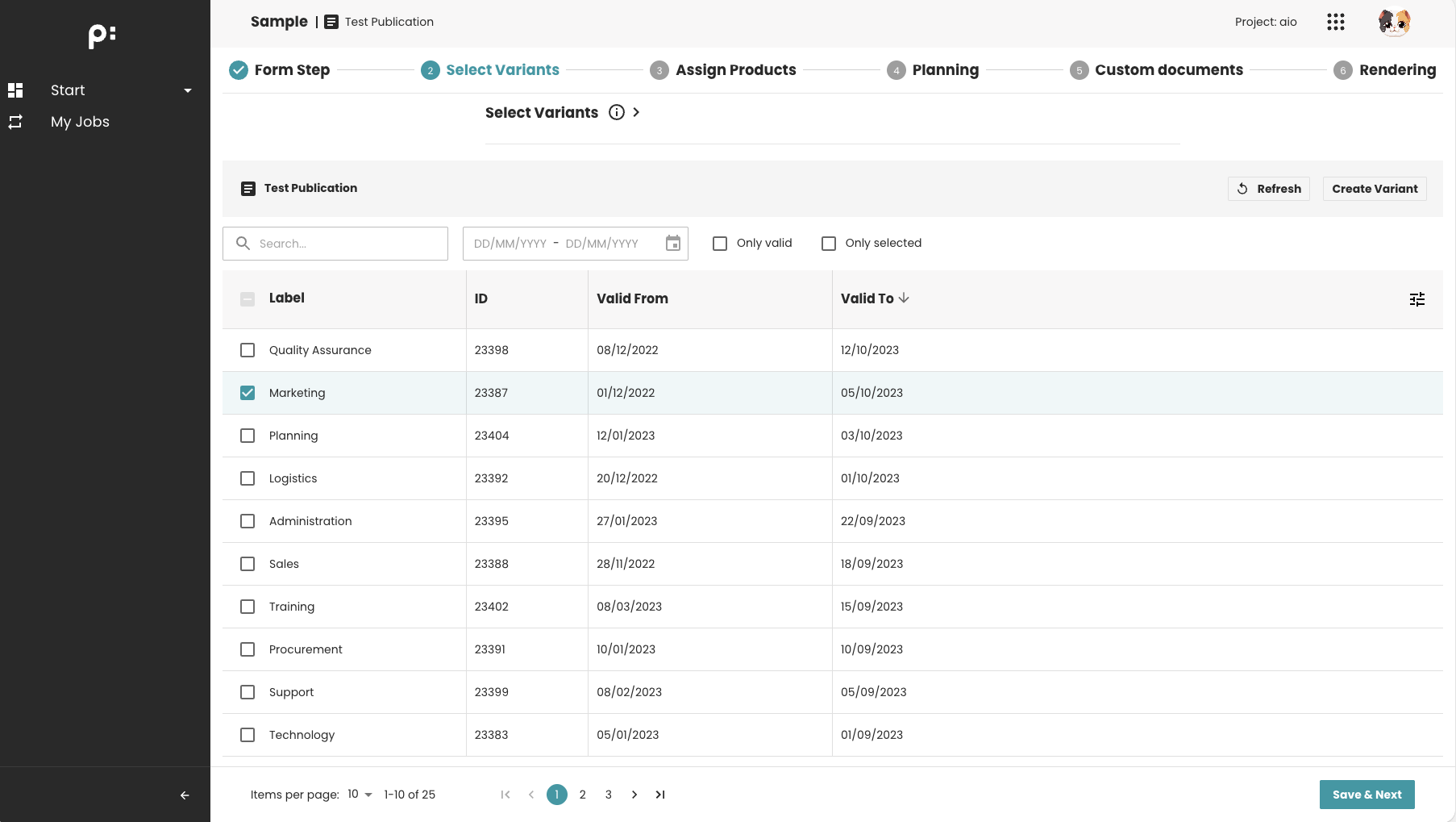
Shows a table where users can select rows. Useful for selecting structured data such as product lists.
PLANNING_TREE
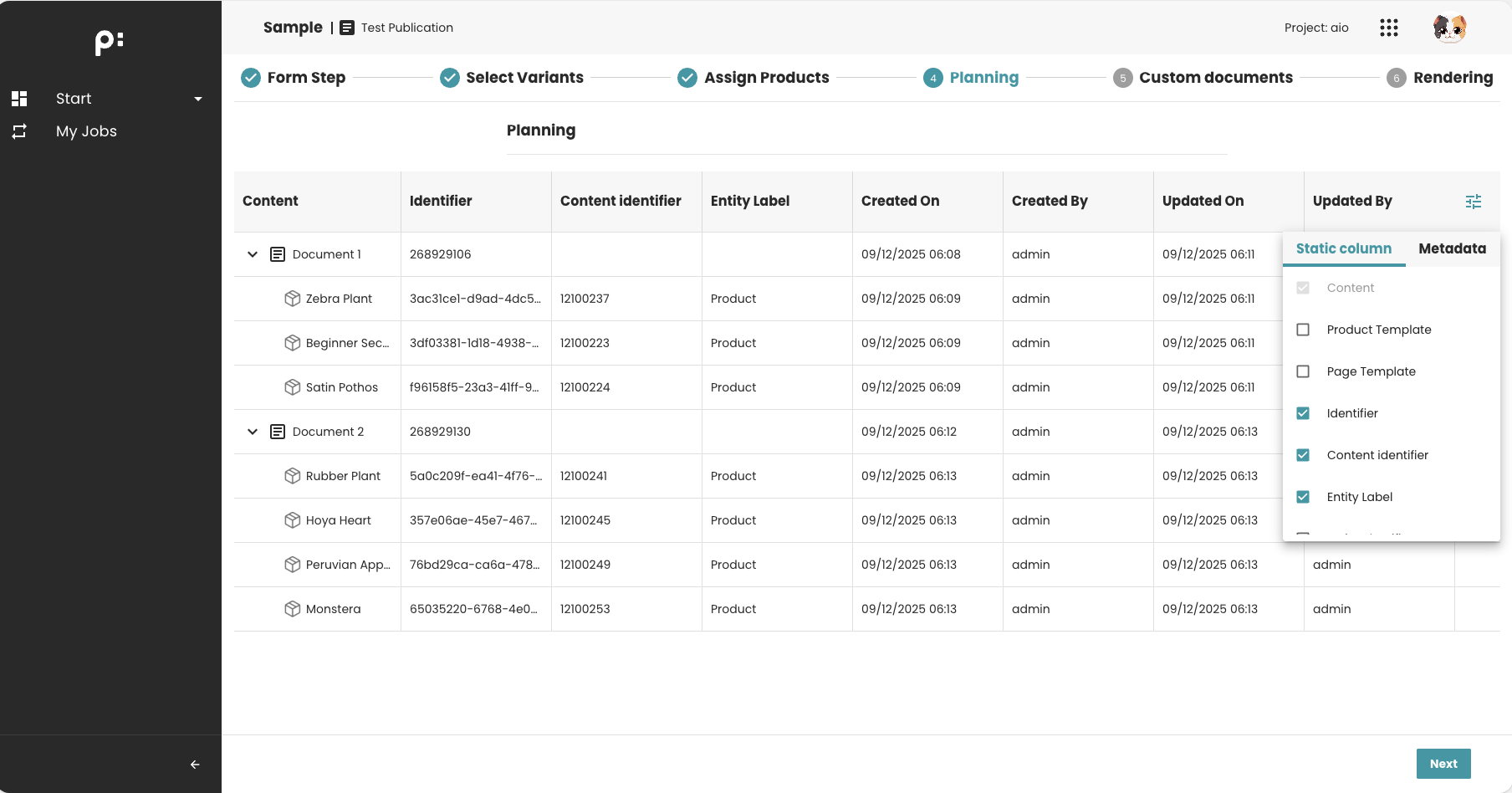
Displays the planning structure of a publication with configurable columns. Supports static and metadata-driven views.
CUSTOM_DOCUMENTS
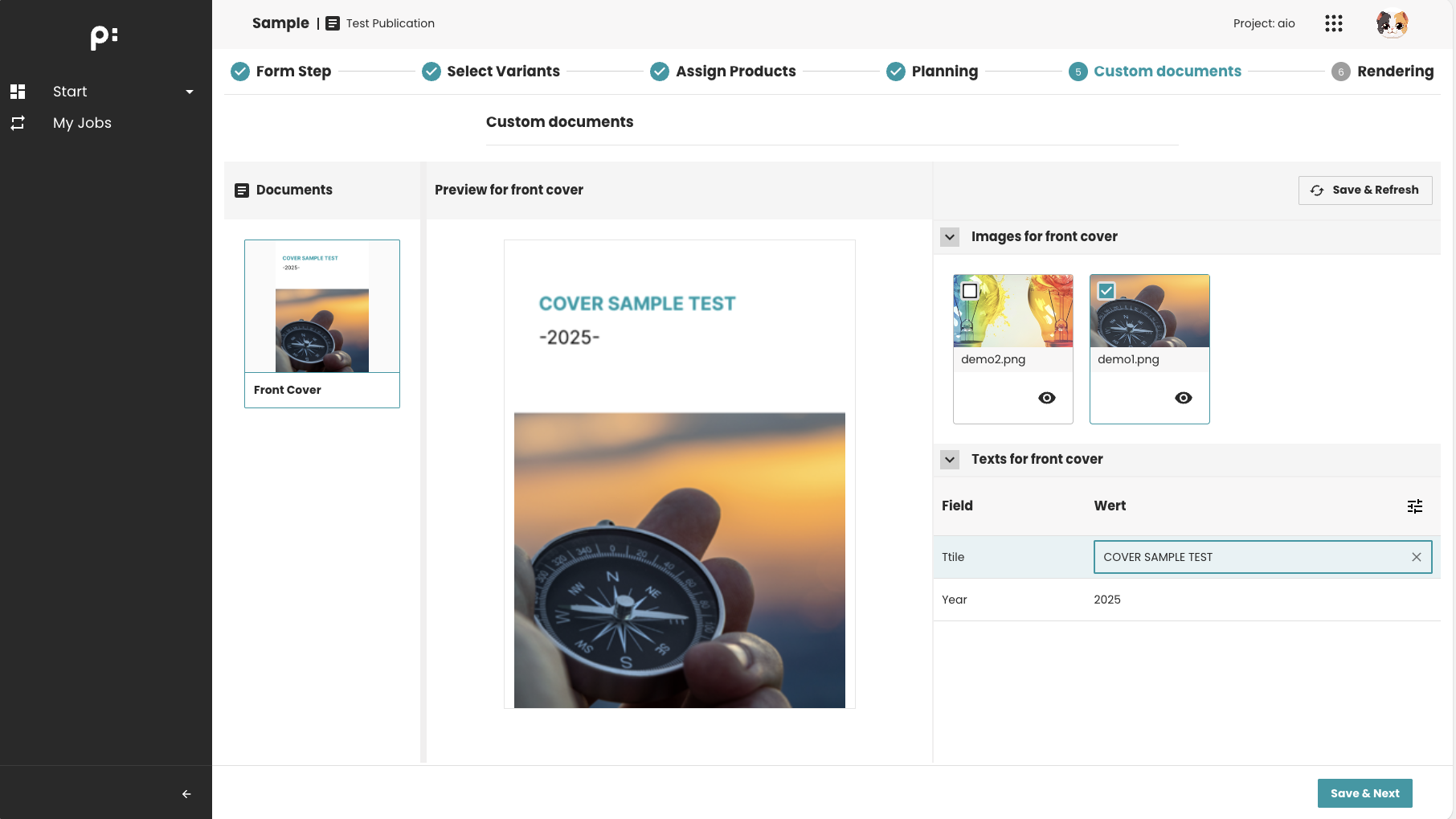
Allows editing metadata and customizing document selection in the planning tree. Can trigger a backend process after saving.
PRODUCTS_ASSIGNMENT
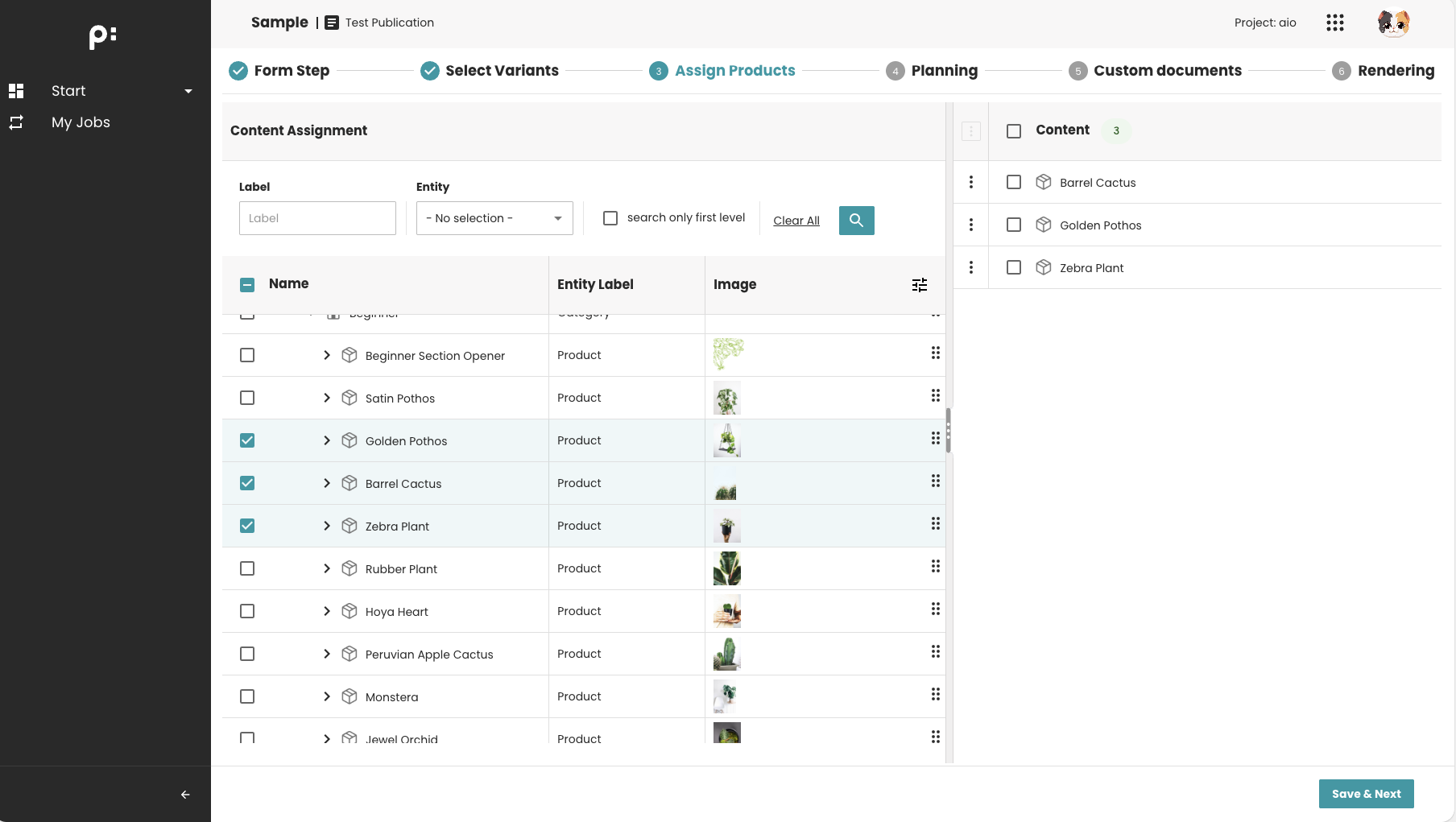
Used to assign planning items to the first publication document. Supports drag-and-drop interaction.
Basic Configuration Structure
Each step is defined in the ISON configuration:
<wizardSteps>
  <wizardStep id="wizard_step_1">
    <label>wizard_step_1_label</label>
    <description>wizard_step_1_desc</description>
    <type>[STEP_TYPE]</type>
    <status>wizard_step_1_status</status>
    <required>true</required>
    <autoSave>true</autoSave>
    <blockOnRunning>true</blockOnRunning>
    <showDescription>true</showDescription>
    <parameters>
        <parameter id="parameter_id">parameter_value</parameter>
    </parameters>
  </wizardStep>
</wizardSteps>
General Notes
- A step with required=true must be successfully completed before the wizard can continue.
- If blockOnRunning=true, the wizard will not proceed while the step (
PROCESSstep) is running a backend task. - Parameters define behavior and vary depending on the step type.
Related Documentation
- FORM Step
- PROCESS Step
- TABLE_SELECTION Step
- PLANNING_TREE Step
- CUSTOM_DOCUMENTS Step
- PRODUCTS_ASSIGNMENT Step